

Windows Autopilot is designed to automate device provisioning and deliver a seamless out-of-box experience for end users. But when the Intune Autopilot error 80180014 appears, the entire deployment process stops, leaving Windows devices stuck on the Enrollment Status Page (ESP) and preventing the device from joining Microsoft Entra ID.
This error is one of the most common issues seen in enterprise environments using Microsoft Intune or during larger endpoint management services, especially where strict enrollment restrictions, BYOD policies, or device preparation controls are applied.
In this guide, you’ll get a complete root-cause explanation, screenshots, diagnostic paths, registry insights, and a step-by-step process to fix Autopilot device enrollment failures, including:
- Azure AD Join failures
- Autopilot device ownership issues
- Device enrollment restriction conflicts
- TPM attestation checks
- Profile settings and device profile assignments
- ModernDeployment-Diagnostics-Provider logs
This tutorial is based on real Windows Management Experts troubleshooting work and is fully aligned with Autopilot and Intune best practices.
What Is Intune Autopilot Error 80180014?
Error 80180014 occurs when a Windows Autopilot device attempts to join Microsoft Entra ID (Azure AD) but the tenant’s current enrollment restrictions, device type restrictions, or MDM enrollment settings block the device.
Autopilot devices begin the onboarding process as if they were personal devices, not corporate.
If your tenant blocks personal Windows devices, Autopilot fails.

Why This Autopilot Error Happens
During Autopilot process initialization:
- Device imports the hardware hash
- Device receives Autopilot deployment profile
- Device attempts Microsoft Entra ID Join
- Device tries automatic MDM enrollment through Intune
- Enrollment Status Page loads required apps and configurations
If the device is not marked as corporate-owned, or if Intune’s enrollment restrictions block personal devices, the system generates the following error:
“Something went wrong. Error code: 80180014.”
This means:
- Azure AD join attempt was rejected
- Device object or device record was not accepted
- User authentication was blocked
- Device platform restrictions denied enrollment
- A constraint violation occurred during device object creation
Root Cause Summary
- Autopilot devices are treated as personal devices during initial join
- Enrollment restrictions block personal Windows devices
- Device ownership is not yet marked as Corporate
- Intune cannot complete Intune Enrollment or MDM registration
- ESP gets stuck configuring required apps, device profiles, or device configurations
This aligns with Microsoft’s behavior:
Autopilot devices only become corporate after successful join, not before.
How to Fix Intune Autopilot Error 80180014
Below is the optimized, field-tested troubleshooting process we use at WME
Step 1 Verify Autopilot Device Ownership
Ensure the device is flagged as Corporate-owned before enrollment.
Path in Microsoft Intune admin center:
Devices → Windows enrollment → Windows Autopilot devices → Ownership = Corporate
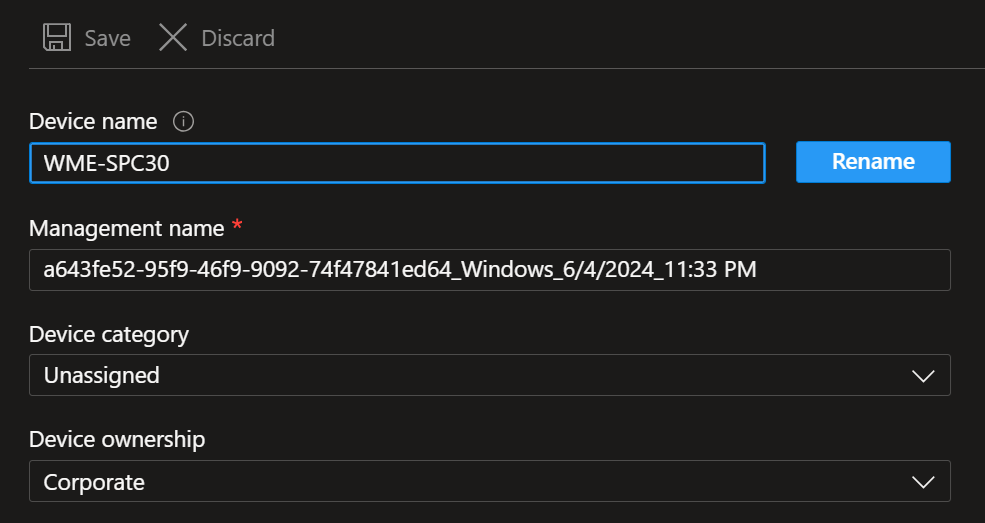
If the device already has a device object in Intune:
- Open the device record
- Set Device Ownership = Corporate
- Save and retry Autopilot enrollment
Step 2 Check Enrollment Restrictions
Navigate to:
Devices → Enrollment → Device platform restrictions → Windows
Make sure:
✔ Personal Windows devices are allowed
—or—
✔ Autopilot user groups are excluded from blocking policies
Autopilot user-driven mode requires user permissions to join the device.
Self-deploying mode requires device-based policies to be open enough to allow join.
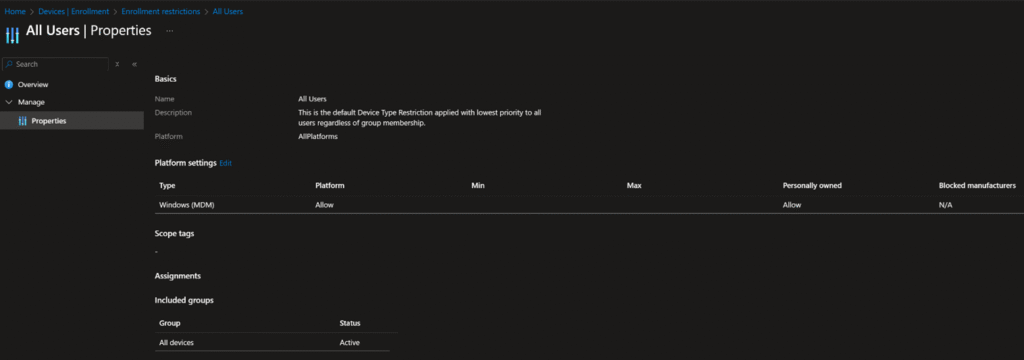
Blocking personal devices too early breaks Autopilot even when the device is preregistered.
Step 3 Validate Microsoft Entra ID Join Settings
Open:
Microsoft Entra admin center → Devices → Device Settings
Ensure:
✔ Users may join devices to Azure AD = Enabled
✔ User is part of correct device groups
✔ Domain controller or AD Connect hybrid join policies are not overriding settings
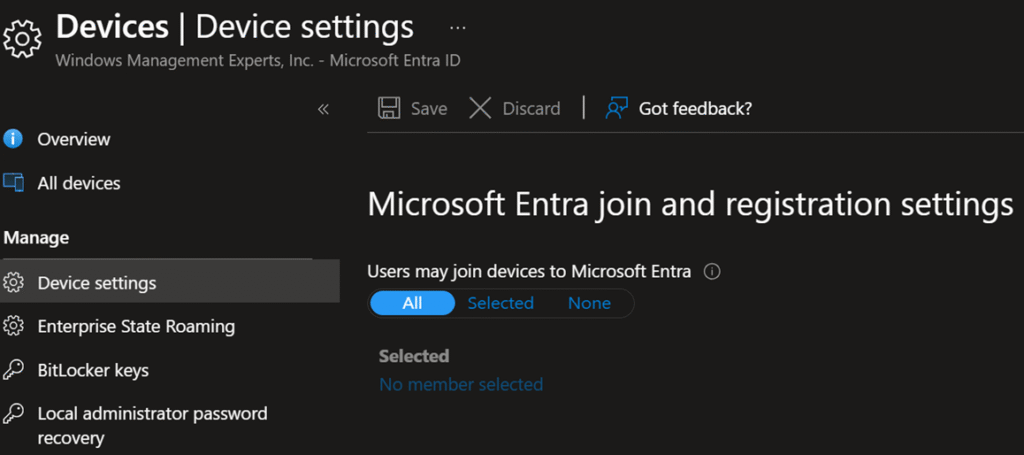
Hybrid domain join environments often cause this issue if the device attempts Hybrid Join while Autopilot expects Cloud Join.
Step 4 Confirm Automatic MDM Enrollment Configuration
Go to:
Intune → Devices → Windows → Enrollment → Automatic Enrollment
Ensure:
✔ MDM user scope = All or correct users
✔ WIP scope = None
✔ Automatic MDM enrollment is on
✔ No conflicting device enrollment restriction
Improper MDM scope stops Windows from completing Intune Management registration.
Additional Troubleshooting Steps
These steps help when the ESP hangs, profile settings fail, or the deployment process stops.
Check Event Viewer Logs
Navigate to:
Event Viewer → Applications and Services Logs → Microsoft → Windows → ModernDeployment-Diagnostics-Provider
Look for:
- Autopilot Errors
- Azure AD join failure
- Enrollment Error logs
- Constraint violations
- Network connection issues
- TPM attestation failures
- Problem information entries
- Autologon issues
- Required apps that failed installation
Check Registry Entries
Common keys to verify:
HKLM\SOFTWARE\Microsoft\Provisioning\Diagnostics\Autopilot
*HKLM\SOFTWARE\Microsoft\Windows\Autopilot*
These indicate:
• Deployment profile assigned
• Profile configuration progress
• Pre-provisioning mode state
• Device ESP behavior
Verify Device Import (Hardware Hash)
Ensure the Serial Number, hardware hash, and device import are correct:
Devices → Windows enrollment → Devices → Import
Missing or invalid hashes break pre-provisioning and cause 80180014.
Check Network Requirements
Autopilot requires:
✔ HTTPS access to Microsoft endpoints
✔ No SSL inspection
✔ Working Windows Updates
✔ Proper DNS resolution
✔ No firewalls blocking:
- Autopilot deployment service
- Intune MDM enrollment URI
- Company Portal installation
Poor network = Autopilot failure.
Troubleshooting Checklist
- Device marked as Corporate
- Enrollment restrictions configured
- Azure AD join permissions
- MDM scope correct
- Deployment profile assigned
- Required apps install successfully
- TPM attestation validated
- Hardware hash correct
- Network connectivity stable
- No Conditional Access blocks
- No conflicting device profiles
- ESP allowed to install required apps
Final Thoughts
Intune Autopilot error 80180014 happens because Autopilot devices are not recognized as corporate-owned during the initial join.
If your tenant blocks personal devices — even unintentionally — Autopilot enrollment fails.
Fixing this requires proper ownership, correct enrollment settings, and an accurate Autopilot configuration path.
Fix Device Enrollment Issues Fast With Expert Intune Support
Resolve Autopilot errors, optimize device onboarding, and stabilize your Windows deployment pipeline with proven Endpoint Management strategies from WME.
Talk to Our Intune Experts