

If you want to prepare properly for Copilot, you should focus on many areas in your company, both organizational and technical. In this post, I will focus on the data layer that is the main source of knowledge for Copilot – SharePoint.
The SharePoint platform serves multiple roles in Microsoft 365. It’s the main platform for Intranet portals, department portals, places for external collaboration, and so on. It’s also the main storage for documents. Project files, Intranet or department documents, data shared with external partners and vendors, teams communications data, etc. That’s why it’s so important to analyze and properly prepare SharePoint for Copilot implementation. A process many organizations handle through expert SharePoint consulting services.
Documents Permissions
Copilot has access to the same amount of data that a user has. For example, John has access to 20 sites with documents, 30 teams in Microsoft Teams, multiple shared folders, 5 shared mailboxes, and many single documents shared by his colleagues.
When he asks Copilot for a project summary, then AI will analyze all his documents and other data that he has access to, and then process the information, and give him back the summary. Copilot won’t ask if the files are shared correctly, or if it’s a mistake, or maybe some old and invalid document. Or he changed his role to a new one, but he still has access to previous folders. In some cases, it can cause a lot of problems and even severe security issues.
Such a situation is called oversharing – documents (or even entire sites) are shared with too high permissions or with too many people.
It can cause 3 main issues :
- Access to information beyond what the user needs for their role
- Inappropriate sharing of sensitive content
- Out-of-date or irrelevant data
Common Causes of Oversharing
There are many reasons why it happens, but I want to focus on the 5 most common:
- Wrong default sharing options for files
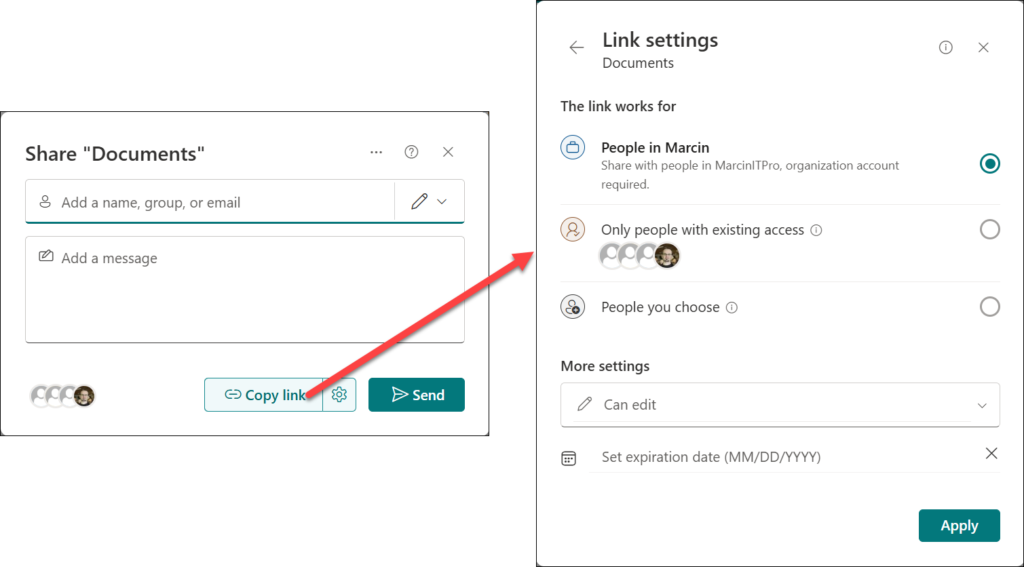
SharePoint gives you an easy way to share a file or a folder. When you click a Share icon or button, you can just Copy link. That’s it. In most cases, people do not check sharing options, and it’s the fastest way to create overshared documents.
In the example below, the Copy link button shares the entire document library “Documents” with anyone inside the organization who gets that link. The link gives Edit permission for the shared object. If someone sends that link to other people, I will lose control of who can really read and edit those documents.
- Privacy settings set to public for sites/teams
When you create a team in Microsoft Teams, you can select whether it’s a public or a private one. Public means that everyone in the organization has access to that teams, can read and write. The problem is that people do not change it if it’s selected by mistake, and the entire team can be accessible to anyone.
- Broken permission inheritance
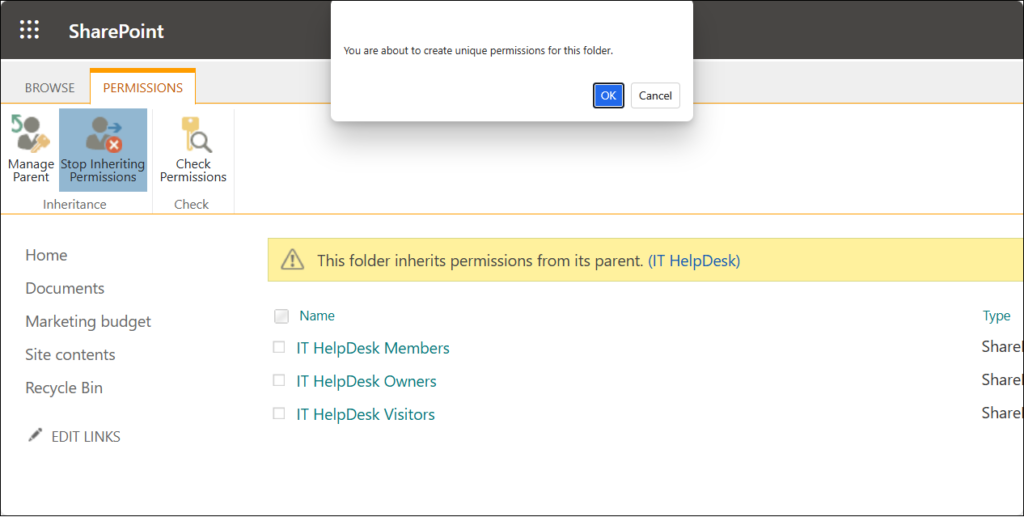
You can share a document using a sharing link or by breaking permissions inheritance. The second option means that you can completely detach a file’s permission from the parent (a document library). It can be dangerous because it’s hard to manage such files, and usually, even administrators don’t know about them.
For example, I have a document library “Marketing budget,” and everyone in the marketing team has access to that library. I broke permissions in the folder “Budget 2025” and shared it with colleagues from a different department. Then the marketing manager uploaded sensitive data into that folder without knowing that it was shared. In this case, sensitive data is shared automatically with other departments.
This is quite a common scenario and often causes very serious oversharing problems.
- Share data with everyone
The group called “Everyone except external users” is an old way to share something in SharePoint with everyone in your organization. If you shared a document with this group, then everyone (existing and future users) can read or even modify the file. This is the simplest method to lose control over shared data.
- Outdated or wrong settings
Microsoft 365 has many security settings related to permissions and data protection for SharePoint. Administrators must adjust the configuration to existing use cases and current business needs. At the same time, they must make it as secure as possible.
If the configuration is outdated, it can lead to oversharing and security concerns. For example, allowing sharing data with guest users on every site can cause many documents to be shared with external parties.
SharePoint Advanced Management
There are many methods to check the existing status of shared documents and other SharePoint objects. You can use:
- PowerShell scripts
It is flexible and powerful but requires a PowerShell developer and a lot of work.
- Third-party tools
Many commercial tools offer such reports, but they are expensive and require know-how.
- SharePoint Advanced Management
This is a set of tools and reports dedicated to advanced management tasks. It offers a dedicated report for data access for SharePoint and OneDrive. I will focus on this one in this chapter.
To use SharePoint Advanced Management features, your organization needs to have the right license and meet certain administrative permissions.
First, your organization must have one of the following base licenses:
- Office 365 E3, E5, or A5
- Microsoft 365 E1, E3, E5, or A5
Additionally, you need at least one of these licenses:
- Microsoft 365 Copilot: At least one user in the organization must be assigned a Copilot license (this user doesn’t need to be a SharePoint administrator!).
- Microsoft SharePoint Advanced Management license: Available as a standalone purchase.
Data Access Governance Reports
There are 5 reports designed for oversharing:
- Site permissions report: Provides a snapshot of the permission structure across all SharePoint and OneDrive sites. This is a comprehensive report with all types of permissions, and the one that you run as a first report.
- Site permissions for users report: Lists all sites a specified user can access.
- Sensitivity label for files report: Shows SharePoint sites containing files with specific sensitivity labels applied.
- Sharing links reports: Shows sites where users recently created the most sharing links (including “Anyone,” “People in the organization,” and “Specific people” links).
- Shared with ‘Everyone except external users’ reports: Shows sites where content is shared with all internal users in the organization.
Let’s run the Site permissions report. To do that, follow the instructions:
- Navigate to the SharePoint admin center
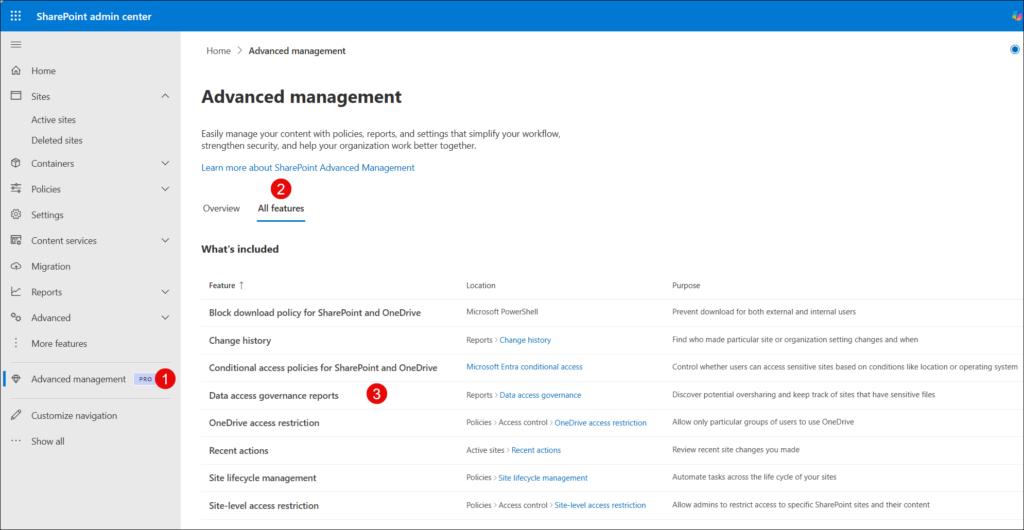
- Select Advanced management (1) -> All features (2) -> Data access governance report (3)
3. Select View reports in the Site permissions across your organization section
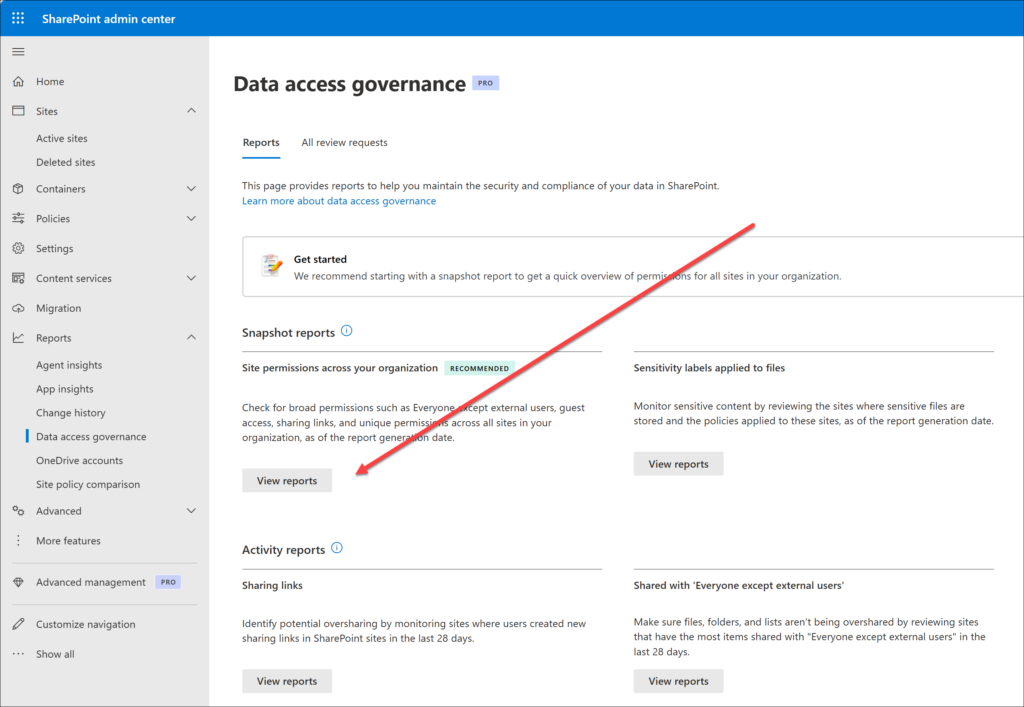
4. Select Run reports or run a specific one. The first report takes up to 5 days to complete; subsequent reports usually complete within 24 hours (depending on the organization’s size).
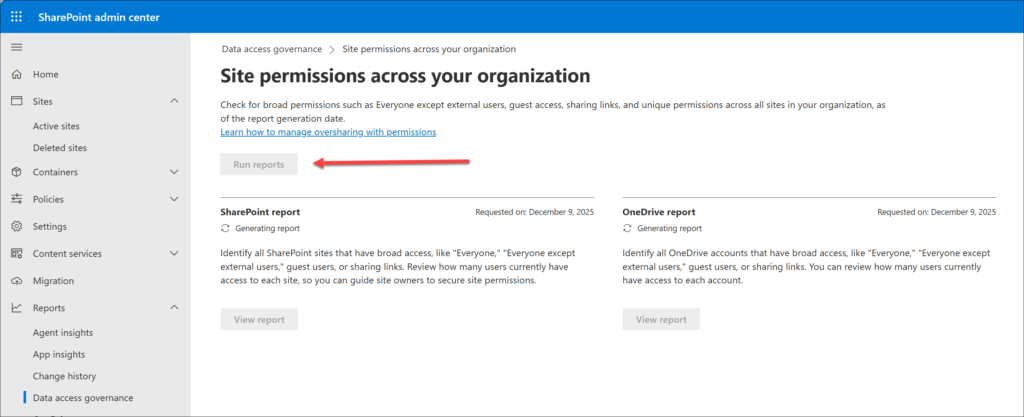
5. Open the SharePoint report when it’s ready
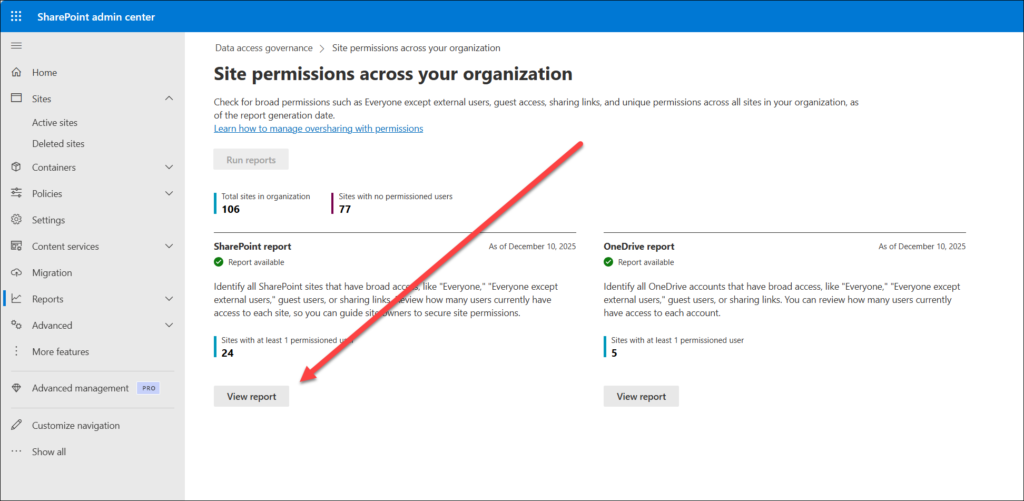
6. You can review the report on the site or download the full report as a CSV file.
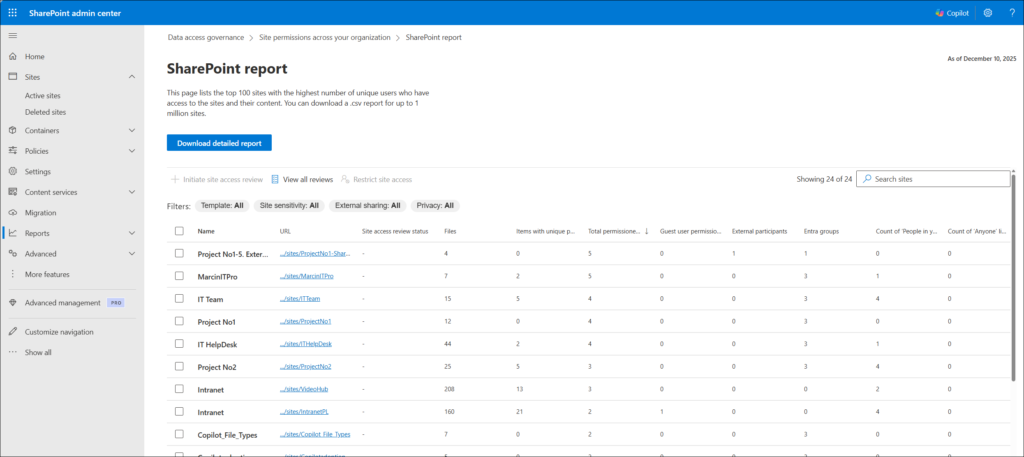
The report contains detailed information about sites and their permissions. Information that you should check:
- ExternalSharing
Specifies whether site content can be shared with guest users. - Site Privacy
Specifies the privacy setting of the group (Public or Private). - Site Sensitivity
Sensitivity label applied to the site - Number of users having access
Unique number of users having access to any site content. - Guest user permissions
Count of permissions for guests. - External participant permissions
Count of permissions to external users. - Microsoft Entra group count
Number of Microsoft Entra cloud-only groups. - Items with unique permissions count
Number of items with broken permissions inheritance. - People In Your Org link count
Number of existing PeopleInYourOrg links across all the files in the site. - Anyone link count
Number of existing Anyone links across all the files in the site. - EEEU permission count
Number of permissions with ‘Everyone except external users’ as the recipient. - Everyone permission count
Number of permissions with ‘Everyone’ as the recipient.
With the data, you can analyze and find sites with potentially overshared data. The next step is to verify those sites and correct permissions if necessary.
Site Access Review Process
Site access reviews are a feature in SharePoint Advanced Management (SAM) that allows IT administrators to delegate the site review process to site owners. They are the best people to do that because they know the data and the purpose of their site.
Follow the instructions to start the review process.
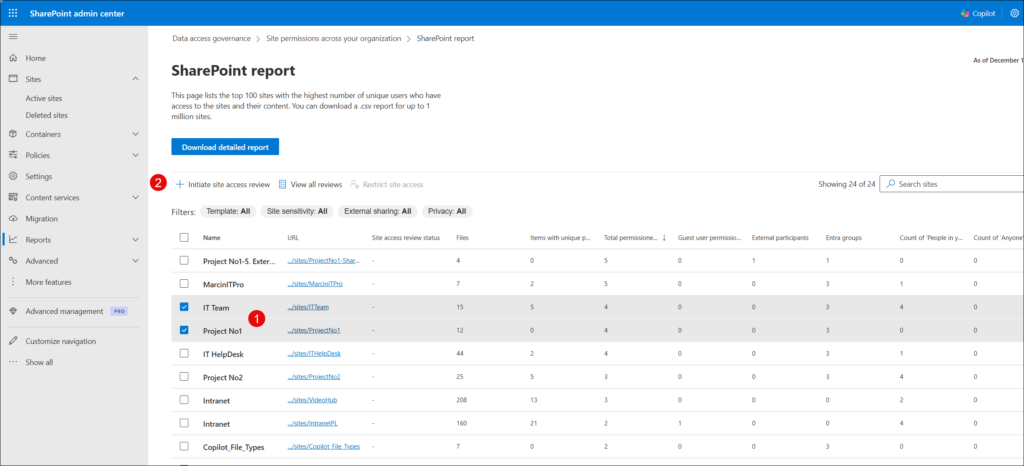
- Open the SharePoint report that you created in the previous section. Select a site or sites (1) and then select the Initiate site access review button (2).
2. Provide a comment for site owners (1).
You can also customize the email that will be sent to site owners (2). When you’re ready, select Send button (3).
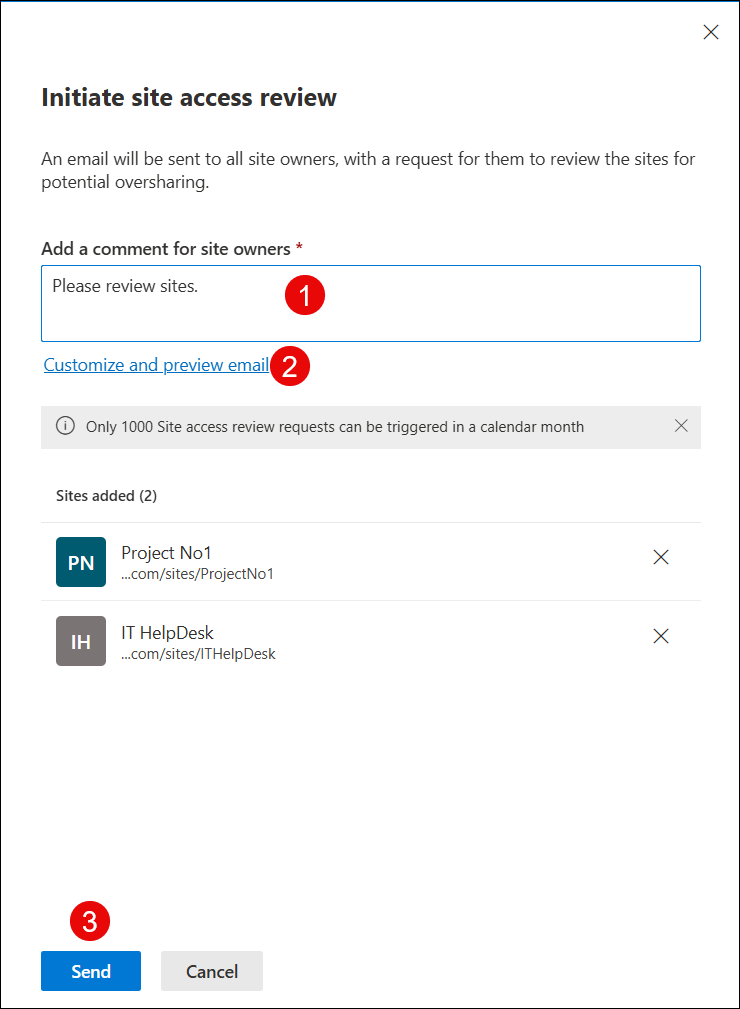
3. You can review the progress on the site access reviews page, in the My review requests
You can do the same with other detailed reports (e.g., Sharing links report) to ensure that all sites are properly configured and ready for Copilot deployment.
Summary
Copilot requires multiple steps and a good plan to be properly implemented in the organization. Oversharing in SharePoint can cause a lot of problems during AI usage and can easily expose sensitive information to unaware users. Many organizations rely on SharePoint consulting services to prevent these risks and ensure proper data governance before enabling Copilot.
Running reports dedicated to oversharing in SharePoint Advanced Management is the easiest and fastest way to analyze the entire SharePoint platform and address permissions concerns. You need only 1 Copilot license for any user to give your SharePoint administrator a powerful tool to get detailed information from sites. Plus, the site access review process makes it straightforward to analyze results by site owners and correct permissions if needed.
It’s only one of many steps that are required in the Copilot adoption process, but it’s one of the most important. It takes time and resources – the analysis phase can take up to 5 days, the review phase can take even more than a month (depending on the organization’s size and site size), and the site owners must be involved in the process. But the results will make your SharePoint secure and prepared for AI.
Microsoft prepared a dedicated process for oversharing in SharePoint. The official guideline with the proposed process is a starting point for every organization. You can use it but be sure to check it carefully and adjust it to your organization. The oversharing blueprint – https://learn.microsoft.com/en-us/copilot/microsoft-365/microsoft-365-copilot-blueprint-oversharing.
Eliminate Oversharing and Secure SharePoint for Copilot Success
Strengthen permissions, stop data exposure, and prepare your entire SharePoint environment for Microsoft 365 Copilot with expert governance support from WME.
Talk to Our SharePoint Experts