
Most organizations roll out Copilot licenses first and then try to figure out how to use them, how to measure employee performance, and how to implement department scenarios. The last thing is – how to prepare the Microsoft 365 tenant itself. Copilots is secure by design, so we don’t need to think about it, right?
Copilot is an AI assistant that can instantly find, summarize, and rewrite anything your employees already have access to. That’s exactly why readiness matters.
Copilot combines large language models (LLMs) with Microsoft Graph and Retrieval Augmented Generation (RAG) to deliver context-aware answers grounded in your organization’s data (emails, files, chats, and calendar data). It respects existing permissions, and it never grants new access.
But here’s the catch: Copilot reveals existing permissions/security problems. From oversharing, through DLP, to labeling and Teams settings. Everything matters, and eventually, most organizations discover that problem. I worked with 3 customers last month, and 2 of them had security issues related to oversharing!
In this post, I will cover how you should prepare your environment to be sure that you control the data and your users won’t discover sensitive data.
Licensing requirements
To start with Microsoft 365 Copilot, you need to acquire Copilot licenses for every user. It is an add-on license, and you need an eligible base subscription plus the Copilot add-on.
Eligible base licenses include:
- Microsoft 365 E3/E5,
- Business Basic/Standard/Premium,
- F1/F3
- E1/E3/E5.
When you buy at least 1 Copilot license, your SharePoint Admins will get SharePoint Advanced Management (SAM). It’s a critical set of features that you can use to govern SharePoint and OneDrive data, generate oversharing reports, and implement advanced settings. You will need it to analyze and protect your environment.
SharePoint and OneDrive oversharing
SharePoint oversharing is the NUMBER ONE Copilot readiness risk. Users share files and folders with colleagues and with external users (partners, vendors, customers, etc.). Years of sharing create a permission hell that’s invisible in daily work – until Copilot starts accessing data, and then critical incidents appear.
Example:
Paul works in finance at a mid-sized company. He’s building a SharePoint site for the Finance department and needs to share budget planning documents with his colleague, Martin. In a hurry, instead of adding Martin to the file, he clicks “Share” -> “Everyone except external users” – because it’s the fastest option and it’s selected by default.
The document contains:
- Salaries and individual compensation ranges,
- Q3 headcount reduction targets (layoffs not yet announced),
- Merger negotiation (under NDA).
Before the Copilot era, everything worked fine – other users weren’t conscious about those documents, and they didn’t search for them.
Now, when Peter from Marketing asks Microsoft 365 Copilot, “What’s the salary range for a Senior Developer?”, Copilot finds those documents and summarizes them. Peter doesn’t need to know the document name – he just types his needs in the chat. Copilot delivers answers, and it’s not AI’s fault!
Understand your data
That’s the very first thing that every organization should do before assigning Copilot licenses – generate SharePoint and OneDrive reports to find overshared data.
You can use the data access governance reports available in SharePoint Advanced Management. Generated reports will give you insights into sites and will show you documents shared with “Anyone” or “People in your organization” links. You will get a list of all data shared with external parties (guest or anonymous links), and much more. You will be surprised by how much data is shared without control.
The first report takes up to 5 days (depending on how many sites you have and how much data is stored). Incremental report runs are completed within 24 hours.
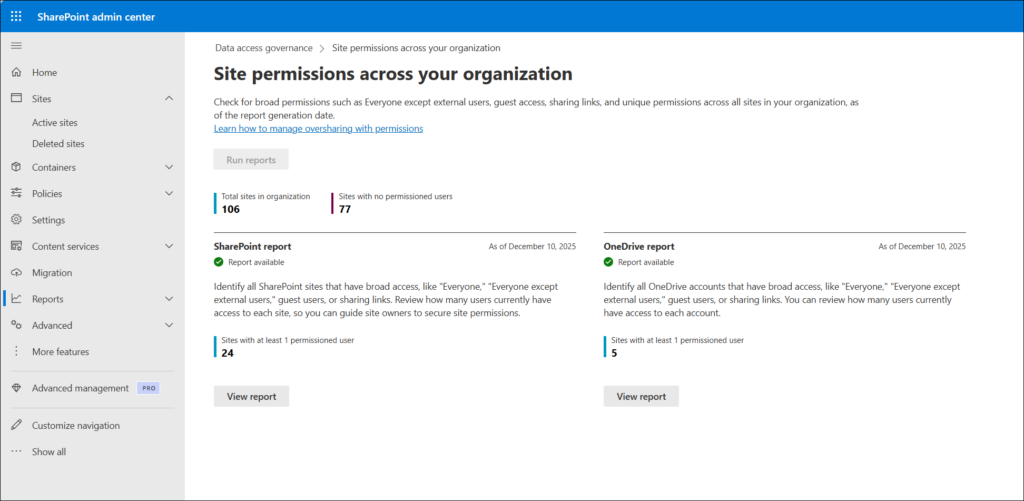
The next step is to review those sites and fix permissions. You can use SAM again to delegate this process to site owners. They are the best people to do that because they know the data and the purpose of their site.
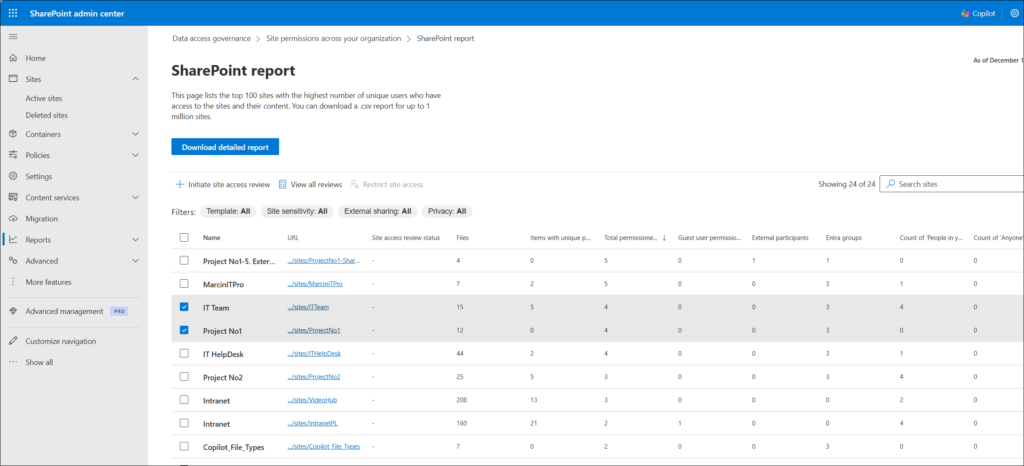
Check the detailed article about oversharing:
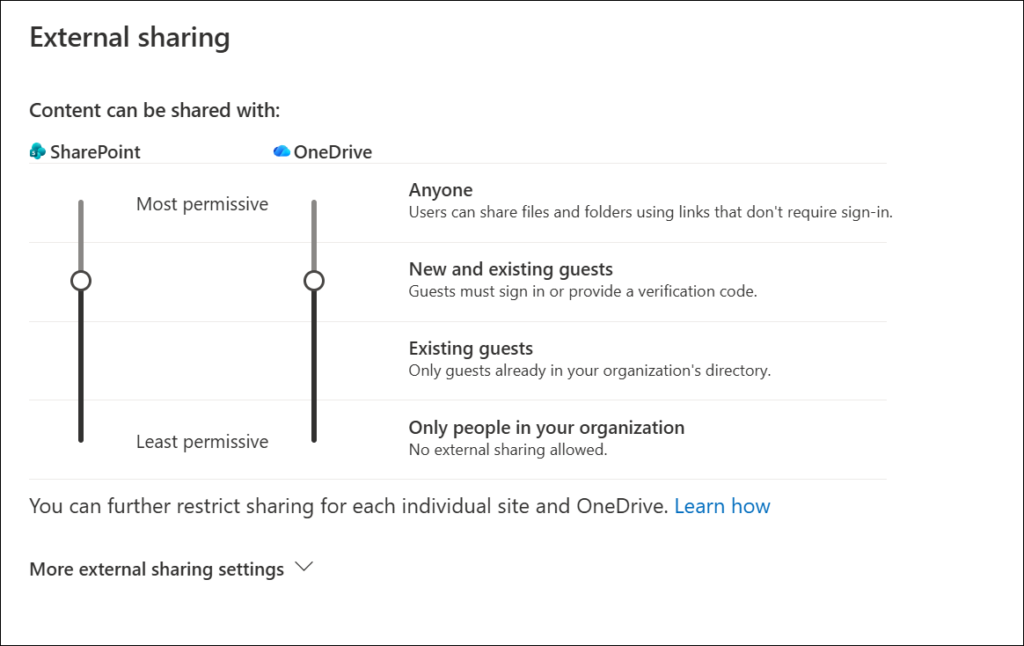
Changing sharing settings
You should also verify and update existing sharing settings for files in SharePoint and OneDrive. It’s harder to share something accidentally when the right settings are in place.
Manage and govern sites.
SharePoint environments can grow rapidly, and without proper governance, many sites may consume unnecessary space, and teams may struggle with unclear ownership or unchecked permissions.
SharePoint Advanced Management provides built-in site lifecycle management features to help you control content and enforce governance policies. Remember: Copilot doesn’t know a 10-year-old document is outdated. It will process old content the same as new.
There are 2 useful policies:
- Inactive site policies.
An Inactive Site policy automatically identifies SharePoint sites that have not been used for a specified period of time. The policy checks activity (site views, file downloads, etc.), and if a site is inactive, the policy flags that site in the reports. Site owners receive email notification with details about their inactive sites. If they confirm that the site should be kept, then the policy will stay in live; otherwise, the policy can make it read-only or even archive the site.
- Site attestation policies.
A site attestation policy enables a periodic site attestation process. It requires site owners to confirm that the site is still needed and its key configuration is up to date (owners, members, sharing settings, etc.). The process can be scheduled every X months. Then it sends a notification to site owners with details about the process and next steps. If site owners do not take action, then the policy enforces actions such as making a site read-only or archiving it.
With those 2 polices in place, your sites will be up-to-date and properly configured. No random permissions, no mismatch between organization sharing policies and the site, no old data.
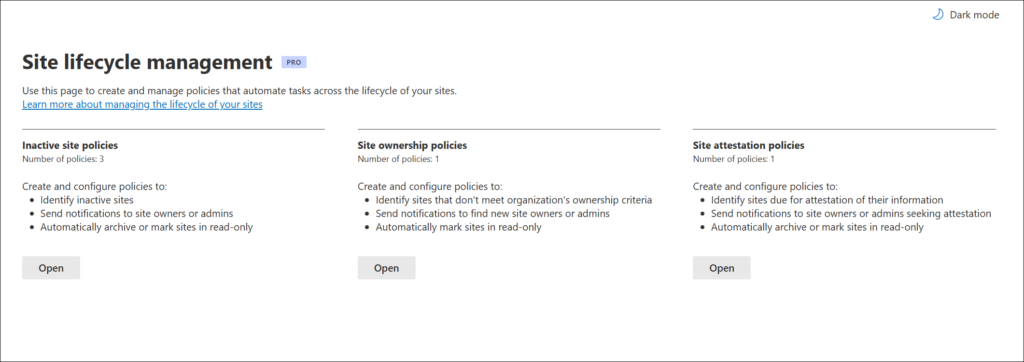
Check a detailed article about site governance – How to govern SharePoint sites using Site lifecycle management <link to https://windowsmanagementexperts.com/sharepoint-site-governance-lifecycle-policies/>
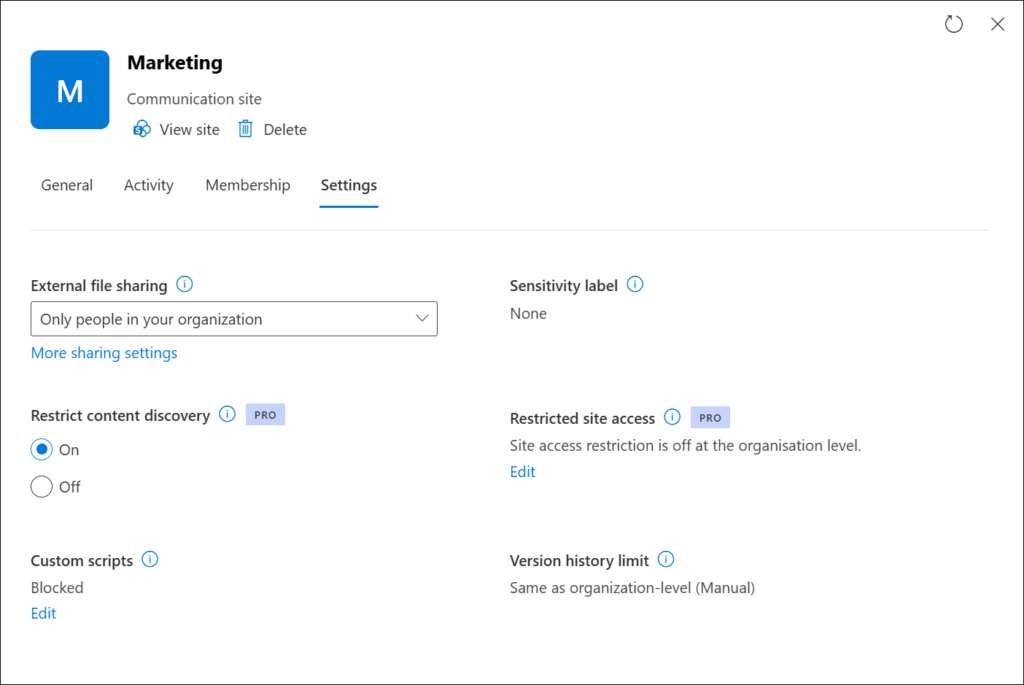
Hide content from Copilot.
Restricted Content Discovery is a SharePoint Advanced Management control that hides a site’s content from search and Microsoft 365 Copilot. When it’s enabled, users who have access to the site can still navigate to it, open files, and collaborate normally. Copilot will not include that site’s content when answering.
It’s the right tool for sites where the content is sensitive, and you don’t want it surfacing in Copilot-generated responses across the organization. Typical candidates include executive briefing sites, board meeting materials, acquisition processes sites, etc. You should analyze your content and decide what to disable from Copilot.
Data governance and sensitivity labels
Microsoft 365 Copilot recognizes and uses the sensitivity labels that you apply to protect the organization’s data. Labels provide an extra layer of protection for documents and can be used by Copilot, too.
How Copilot interacts with labels
Microsoft 365 Copilot displays the sensitivity label for source documents listed in the response and citations. If a source document has multiple labels assigned, then Copilot responses display the most restrictive sensitivity label. That’s the education part – show users labels from source documents.
The next part is label inheritance. If you use Copilot in Word/PowerPoint/Outlook to create new content based on a document that has a sensitivity label applied, the sensitivity label from the source is automatically inherited, with all security settings.
For example, Julia works in the HR department. She creates documents using Copilot in Word. One of the source documents has the sensitivity label Confidential\Anyone (unrestricted) applied, and that label is configured to apply a footer that displays “Confidential information”. The new document created by Copilot is automatically labeled Confidential\Anyone (unrestricted) with the same footer. Even if Julia doesn’t check source documents, Copilot will keep all security features in place.
Classifying existing content at scale
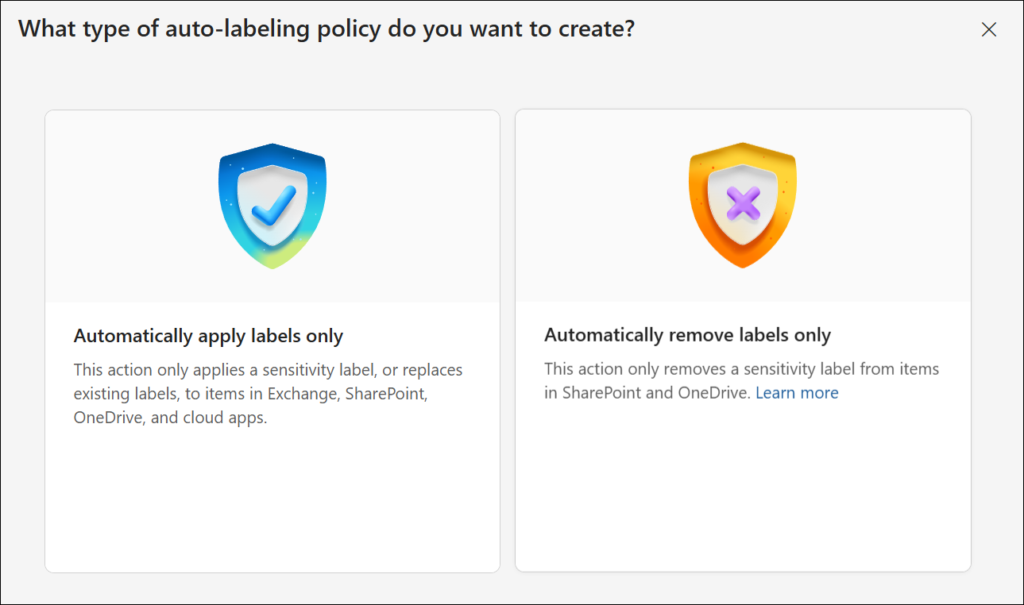
You can configure labels to be required for each new document created in Microsoft 365. It’s a great solution, but new labels only protect new content. But what to do if you have a lot of documents unlabeled but want to prepare for Copilot properly? The answer is – automatically apply sensitivity labels.
Auto-labeling policy is designed to label content that is already created (in SharePoint or OneDrive).
Auto-labeling for SharePoint and OneDrive:
- Supported file types: PDF documents, Word (.docx), PowerPoint (.pptx), and Excel (.xlsx).
- Files can’t be auto-labeled if they’re opened.
- Attachments to list items aren’t supported and won’t be auto-labeled.
- A maximum of 100,000 automatically labeled files in your tenant per day.
- Modified, modified by, and the dates aren’t changed as a result of auto-labeling policies.
- When the label applies to encryption, the Rights Management issuer and Rights Management owner are the account that last modified the file.
Simulation mode
Simulation mode is part of the auto-labeling workflow and helps you tune conditions for labeling. It’s mandatory to run at least one simulation before enabling the policy.
Simulation mode supports up to 4,000,000 matched files. Review the results, and if necessary, refine the condition and your policy settings. For example, you might need to edit the policy rules and remove some sites from the scope.
When you’re happy with the results, you can go to production and enable the auto-labeling policy.
DLP, audit, and retention for Copilot
Microsoft Purview’s compliance stack offers dedicated features to secure data used by Copilot.
DLP policies
Data Loss Prevention (DLP) can help you protect interactions with Microsoft 365 Copilot in three ways:
- Restrict Copilot from using external web search when prompts contain sensitive data
You can create (DLP) policies to prevent Copilot from sending sensitive information to external web services. When a user’s prompt contains sensitive information (credit card numbers, bank account numbers, passport numbers, etc.) Copilot automatically blocks the use of external web search as a grounding source for that prompt.
Copilot continues to generate responses using internal Microsoft 365 data sources, if needed. This ensures that sensitive data remains protected and is not shared with external search providers.
- Restrict Copilot from processing sensitive prompts.
You can create a DLP policy to help protect against the use of sensitive information types (credit card numbers, bank account numbers, passport numbers, etc.) in prompts. In this case, Copilot will not return a response when prompts contain sensitive data and will not use that sensitive data for both internal and external web searches.
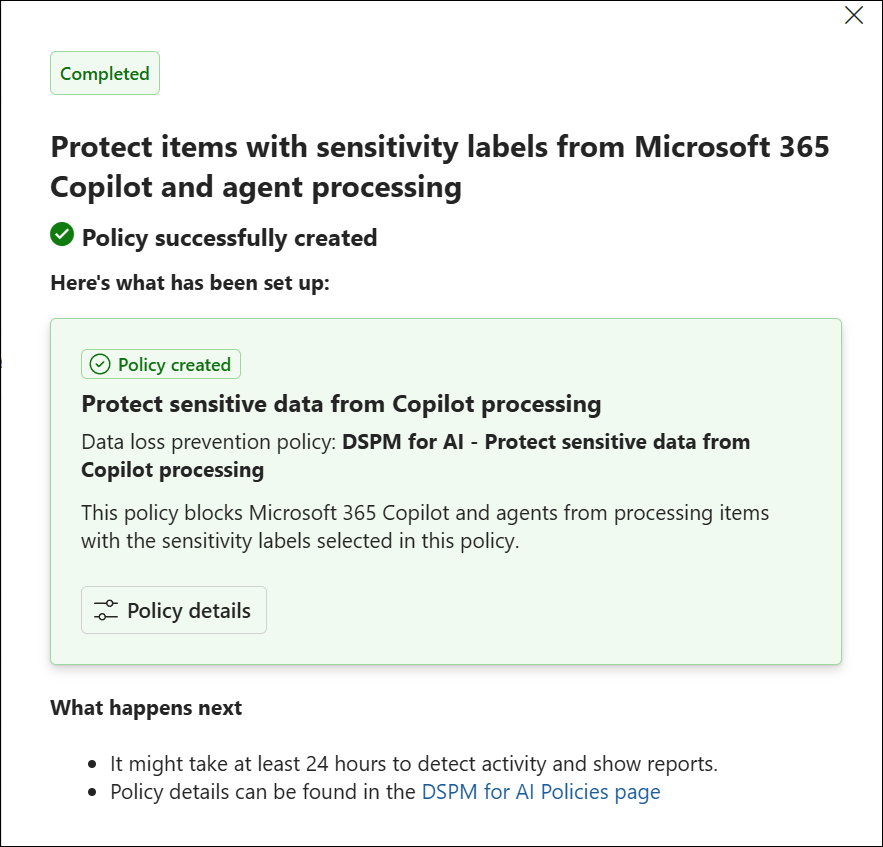
- You can create a DLP policy to restrict Copilot from processing sensitive files and emails. In this case, Copilot will not process files that have specified sensitivity labels.
Retention policies for Copilot data
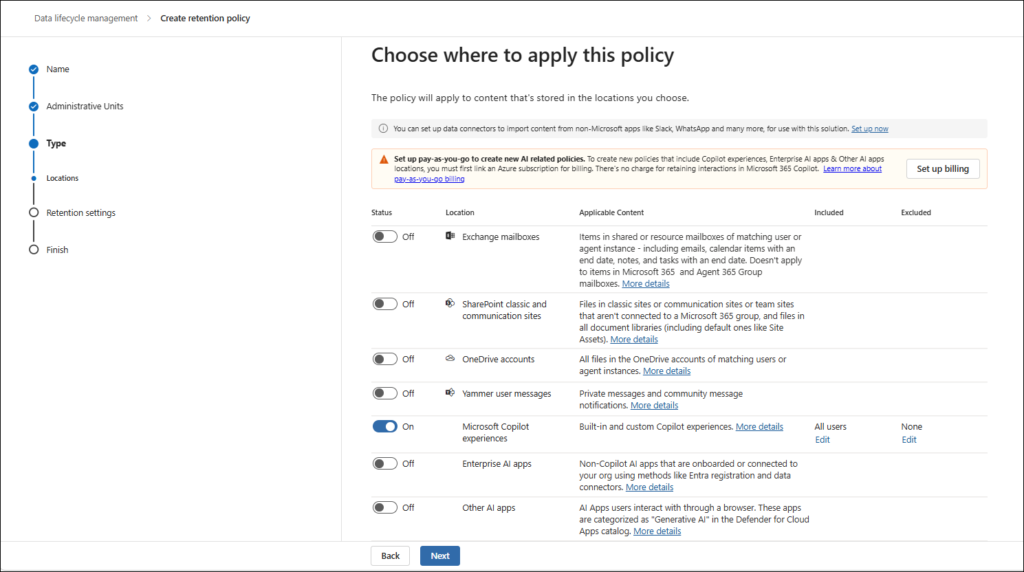
Copilot messages can then be retained and deleted for compliance reasons in a similar way to how you can do it with Teams messages, documents, or emails. Behind the scenes, Exchange mailboxes are used to store data copied from these messages and retained for a specific period or deleted. This hidden folder isn’t designed to be directly accessible to users or administrators. It can be accessed with eDiscovery tools.
When a retention policy is configured for Copilot, a mechanism periodically evaluates messages in the hidden mailbox folder. When these messages have expired their retention period, they’re moved to the “soft-deleted” folder before they’re permanently deleted. Messages remain in that folder for at least 1 day, and then if they’re eligible for deletion, the mechanism permanently deletes them.
With the retention policies for Copilot, you can create consistent data retention policies across all Microsoft 365 services.
Communication compliance
The Communication Compliance tool helps you detect regulatory compliance and business conduct violations such as sensitive or confidential information, harassing or threatening language, and the sharing of adult content. Usernames are pseudonymized by default, and role-based access controls are built in to ensure user-level privacy.
A Communication Compliance policy detects Copilot interactions includes sensitive information types, keywords, Microsoft-provided trainable classifiers, content safety classifiers for Teams, and conditions.
Any prompt or prompt response that a user enters into Copilot that matches a policy appears as a policy match on the Policies page. You can remediate policy matches for Copilot in the same way that you remediate any other policy match. Using this feature, you can detect inappropriate or risky interactions or the sharing of confidential information entered into Copilot.
Your Copilot readiness checklist
This is a starting point for your readiness checklist. Use it as an entry point, but not as a finished list.
No. | Action | Priority |
1 | Run permission reports to identify overshared sites | 🔴 Critical |
2 | Enable mandatory labeling and set default labels | 🔴 Critical |
3 | Change the default sharing link type to “Specific people” | 🔴 Critical |
4 | Hide EEEU from People Picker | 🔴 Critical |
5 | Apply Restricted Content Discovery to sensitive sites | 🟠 High |
6 | Create auto-labeling policies | 🟠 High |
7 | Deploy DLP policy for Copilot with label-based blocking | 🟠 High |
8 | Create Copilot retention policy | 🟠 High |
9 | Run inactive site policy and archive stale content | 🟡 Medium |
10 | Enable Communication Compliance for Copilot | 🟡 Medium |
Getting this right before you start
The organizations that succeed with Copilot don’t just buy licenses – they treat the rollout as a change management project with a data governance phase. If you skip one part, the results won’t be good.
Skipping the governance and configuration part will bring you data leaks, can cause a lot of user complaints and support tickets, and can create ad-hoc workarounds. Remember that every hour spent on readiness pays dividends beyond Copilot. Cleaning up SharePoint permissions, classifying sensitive data, and tightening sharing defaults improve your security in general.
Every organization is different. Everyone has different needs and requirements. Start with the readiness checklist, extend it over time, and make your environment ready for Copilot and AI.
Prepare Your Microsoft 365 Environment for Copilot
WME helps organizations secure SharePoint permissions, improve data governance, and prepare Microsoft 365 environments for safe Copilot deployment.
Book a Copilot Readiness Assessment