Content is one of the most important aspects of Intranet portals – news pages, articles, guides, information pages, and more. Information should be up to date and provide value to users.
The content should also be accessible to all your employees, even if they speak different languages. Fortunately, SharePoint provides an out-of-the-box feature that you can use to create content in multiple languages.
In this blog post, I will show you how to enable this feature and how to leverage multilingual content.
Multi-lingual Intranet with SharePoint
A multilingual Intranet promotes inclusivity and fosters a sense of belonging among employees from diverse linguistic backgrounds, enabling them to access and engage with information in their native languages.
It also enhances communication and collaboration across global or multilingual teams, facilitating seamless knowledge sharing and effective teamwork. It helps overcome language barriers and improves overall employee engagement. In the remote-work world, all these are critical in many companies.
How to Design a Multi-lingual Intranet with SharePoint
SharePoint provides mechanisms to create and maintain multilingual sites and pages. You can enhance your Intranet portal with those features and make it more accessible for teams across the globe.
To prepare an Intranet you must enable multilingual features and configure languages that you want to use. You can check supported languages on the Microsoft page Languages supported by SharePoint.
Designing an Intranet with SharePoint: Key Points to Remember
Pages are not translated automatically
Each page created in your default language can have a corresponding page in a chosen target language that you, or someone you assign, manually translates. Those pages are automatically generated by the multilingual feature. After you translate such a page and publish it, it will be visible to users who prefer that language.
You need to manually sync changes
Changes to the original page are not automatically synced with all translation pages. Each translation page must be updated manually. Translators will get an e-mail message with such information.
Language Personalization
The language displayed to a user will depend on their personal language and region settings.
Enabling Multilingual Mode in SharePoint
Navigate to the Site setting page and open Language settings.

On the Site Languages page, you can enable translations (1) and configure required languages (2). To add a new language, click on the dropdown menu (3) and select a language.

Now you must add a Translator for the language that you selected. You can add a single translator or even multiple people. The Translator will be responsible for the content in the assigned language.
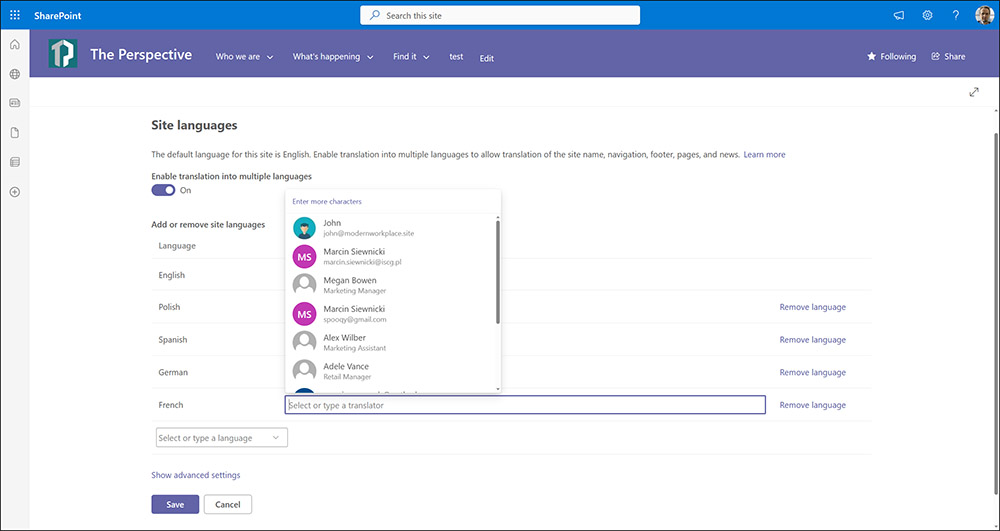
In the example below, I added French language and assigned two Translators for it. When you finish, don’t forget to click the Save
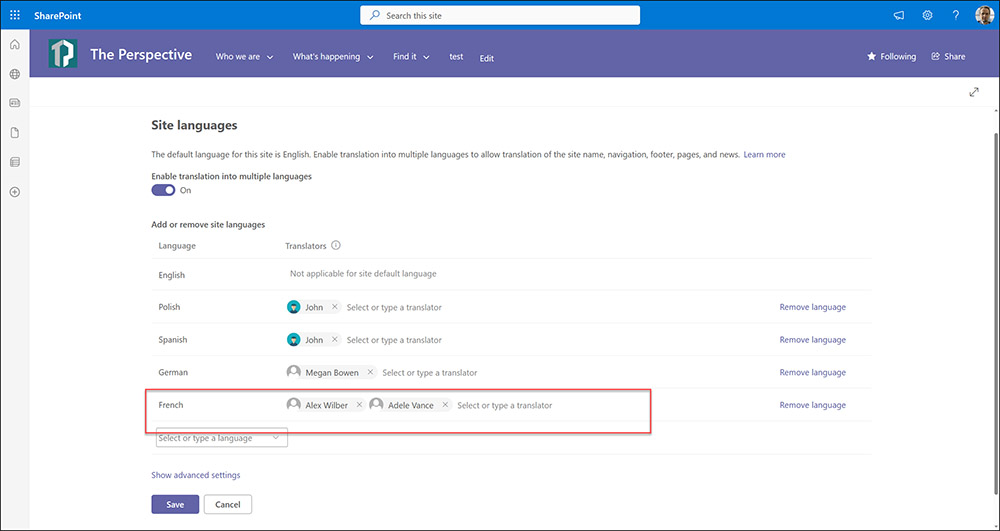
Now you are ready to configure site information, navigation, and footer. Those elements allow site users to use their native language on the Intranet site. The process is manual, and you must do this for each element that you want to support in multiple languages.
Let’s Explore Site Information
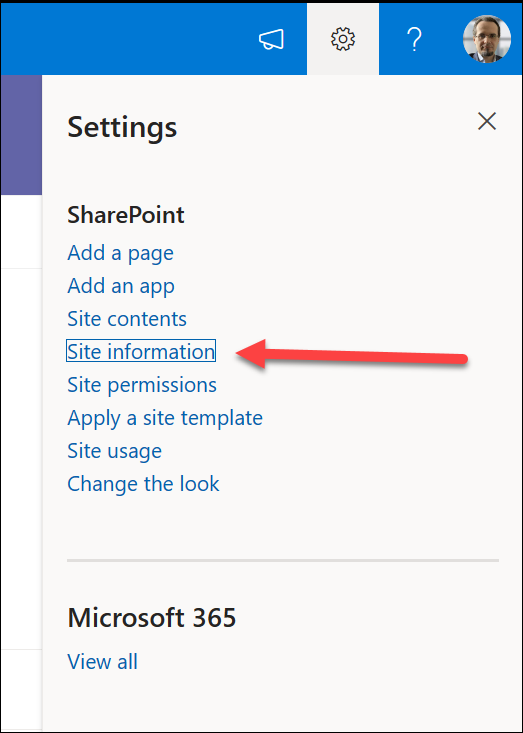
Open the Settings pane and click on the Site information
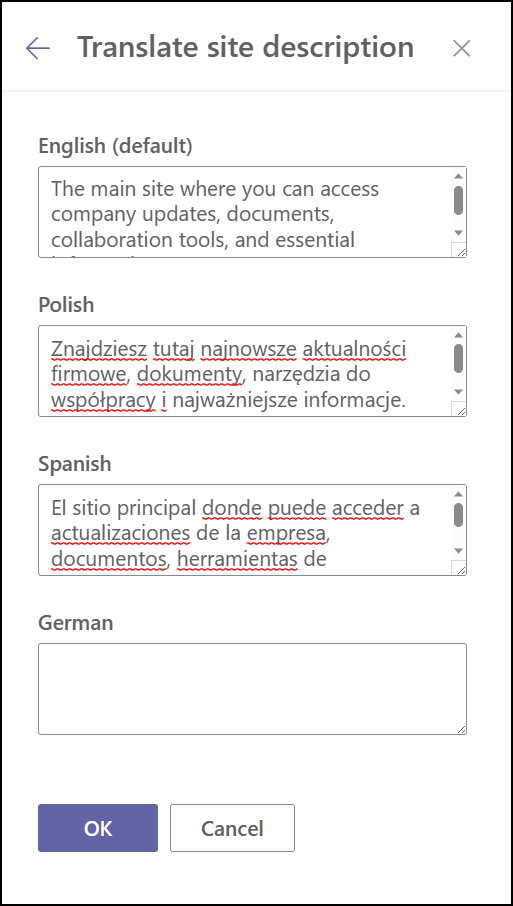
You’ll see Site Name and Site Description in the site’s default language. To edit other configured languages, click on the Translate site name or Translate site description.

Now you can configure your Site information for each language.
Let’s Explore Site Navigation/Footer
Click the Edit button in the top navigation or the footer.

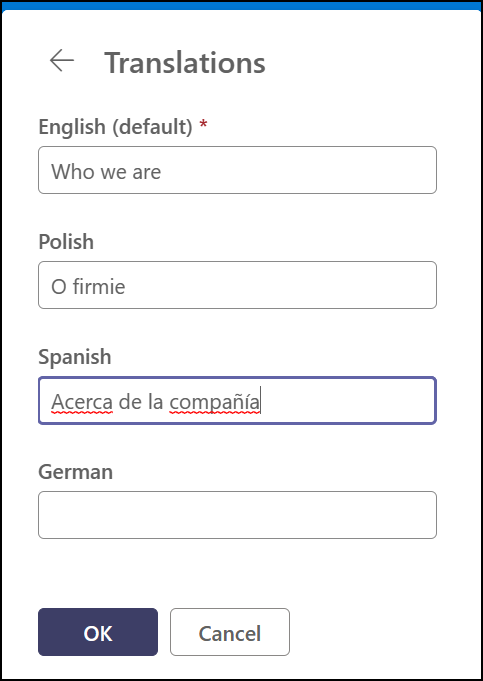
Edit a navigation node that you want to translate and then click the Translations
Provide translations for each language and confirm changes. Remember to confirm changes at the main navigation/footer level.
Page Translation in SharePoint Intranet
You can translate the content of any site page (it can be a regular page or a news page). You can start from scratch and create translations for each language, or you can edit an existing page and add a new language at any time. In this example, I will add more languages to one of my News pages.
Open the page that you want to translate. Click the Translations button on top of the page and then click on the Create button for each language that you need. This will create a copy of the page for each language you choose.

Click on the View link for a selected language.

You will be redirected to a draft page. This is an exact copy of your original page. In my example, this is the News page in English. SharePoint added Translated into Spanish to the page title, but the content is not translated. You need to do this manually.

At the same time, each assigned Translators get an e-mail message with the translation request.

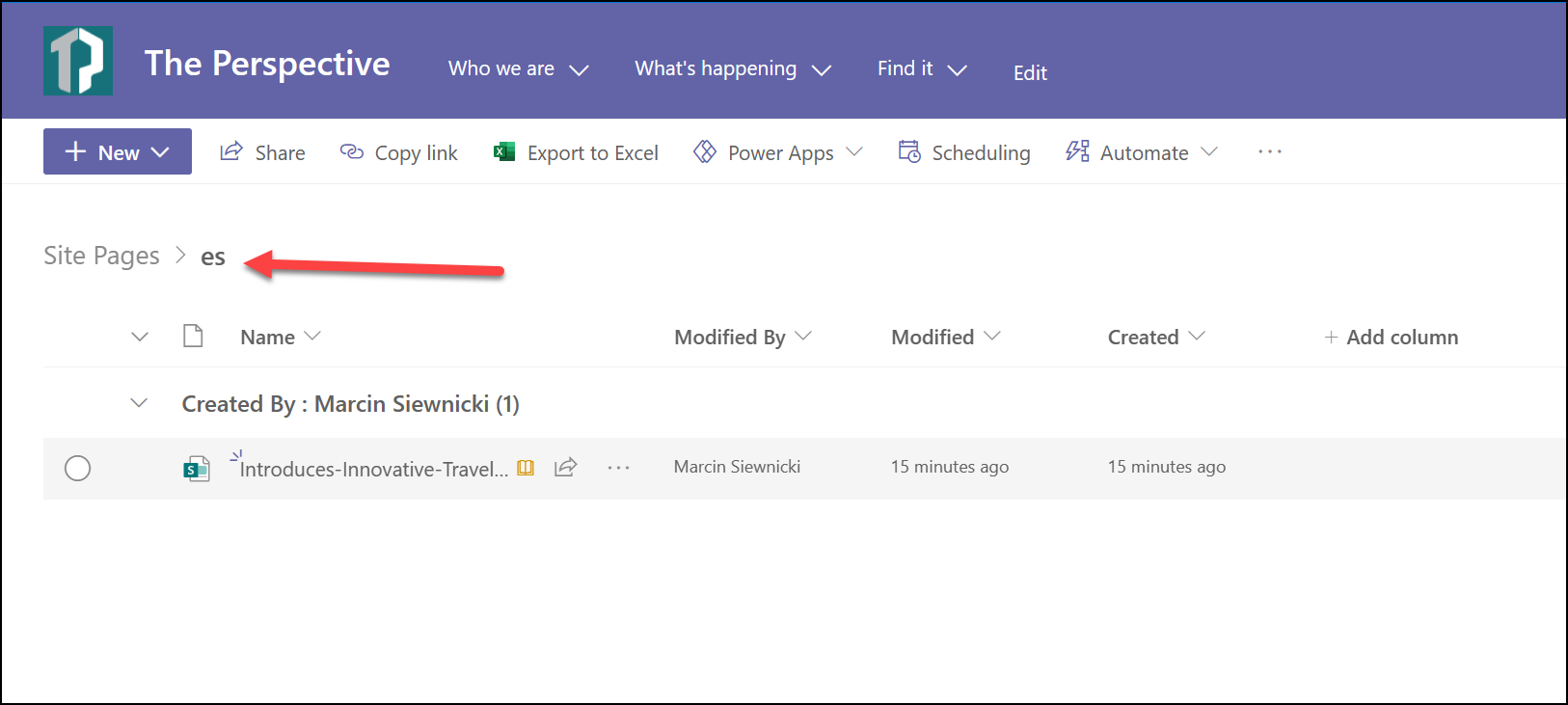
Each language version also has its own unique URL address. Pages are stored in the language folder adjacent to the default language page. The folder can be identified by a 2- or 4-letter language code. For example, the Spanish folder will be identified as es.
Now is the time for manual translations. When it’s translated, select Save as draft (if you’re not ready to publish it) or Publish or Post news.
Each time an original page is updated and published all Translators get an e-mail message with information about changes. They must decide if they need to update their local versions or not.
Finally, a translated version will be loaded automatically based on the user’s local language settings.
Wrapping it Up
The multi-language feature gives a tool to configure and maintain a multilingual Intranet portal on SharePoint. It won’t do all the translation jobs for you, but it will create a structure and give you a mechanism that you can use and configure.
In the AI era, it seems a little bit old-school but currently, it’s the only feature that is available to make your work easier in a streamlined manner.
Manual translations give you full control over the process. It’s more expensive and requires skilled employees or external vendors but you pay for quality content.
Although it’s manual and Microsoft didn’t provide any automation feature you can enhance the process with your own automation! In the next post, I will show you how you can enhance this feature with machine translation and automation tasks.
At WME, we understand the importance of efficient and effective SharePoint implementation.
Our team of experts specializes in providing professional SharePoint services that can further enhance your multilingual Intranet portal — tailored solutions to streamline your workflow, automate tasks, and incorporate machine translation capabilities.