How To Create Custom SharePoint Sites Templates
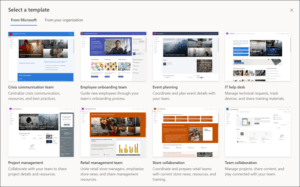
You can create a SharePoint site from scratch or use one of Microsoft templates.
If that’s not enough, you can also create your own custom template and share it with your SharePoint users.
It’s a great way to create predefined templates with branding, structures, and additional features. In this post, I will show you to prepare and create a dedicated custom template.
Templates in SharePoint
This is one of the most important parts of the SharePoint platform. It gives you control over site branding, installed features, security groups, pre-defined components, etc.
You can create a basic template with minimum options configured (a team site with branding applied) or a very complex one with navigation, security groups, list structure, features, Flows, etc.
By utilizing templates, businesses can save time and effort in setting up new sites, as they come with predefined structures, permissions, and features aligned with common business scenarios.
These templates foster consistency and standardization across the organization, ensuring that users are working in a familiar and coherent environment.
Quick Deployment of SharePoint Online templates
Moreover, SharePoint Online templates enable rapid deployment of solutions, facilitating quicker project kick-offs and reducing development costs (create once, use many times).
With templates, businesses can easily create dedicated spaces for project management, knowledge sharing, or communication hubs.
How to leverage SharePoint Online Templates
From a technical perspective, leveraging SharePoint Online templates is a strategic approach that enables IT teams to expedite the deployment of standardized solutions while maintaining control and consistency within the SharePoint environment.
Templates provide a framework for creating preconfigured sites with components such as lists, permission groups, sharing options configure, and enabled features.
For more advanced scenarios (for example, create a project site with pre-populated data, approval process, and notifications enabled) you can enhance templates with Power Automate Flows or Azure Logic Apps.
PowerShell also supports templates -both the default SharePoint Online module and the PnP module.
Template structure in SharePoint Online
Before you start creating your first site template you should understand 3 key elements:
- Site script – a JSON file that defines a structure and configuration options applied to a site.
- Site design – a package for site scripts. You can assign multiple site scripts to one site design.
- Template – a site design with a name and an image that is visible to users from a SharePoint site page. Users don’t need to know site design or site script terms; they get a list of templates and can select one.
NOTE: This is not connected with a Site template that defines a Communications or Team site.
Using a site script to SharePoint Site content
Using a site script, you can define what is created on a selected SharePoint site when a user applied the template. The basic options are:
- Configure navigation (add or remove a navigation link)
- Apply a site theme.
- Set branding properties (set navigation layout, header layout, header background, show footer)
- Set a site logo.
- Join a hub site.
- Configure regional settings (time zone, locale, number sort order, hour format)
- Add users/groups to SharePoint default groups.
- Create a new SharePoint list.
- Define a new site column.
- Define a new content type.
- Add content types from the Hub site.
- Manage guest access.
SharePoint Online Templates: Advanced Options
- Install an add-in or solution from the App Catalog
- Register an extension from the App Catalog
- Activate a SharePoint Feature
- Trigger a Power Automate Flow
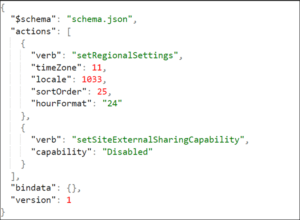
Basic site script with:
- Time zone 11
- Locale 1033
- Sort order 25 (code for General sort order)
- External Sharing disabled
Create a SharePoint Online Site Script
To create a template, you must create a site script first, then add it to a site design.
The first thing is to create a site script – this is the most time-consuming part of the entire process. There is no simple way to do this because each requirement is different.
Fortunately, there is a free online tool that you can use to speed up the process. You can also export existing site definitions to a site script format, modify it, and then use it to create a new one.
- Create a site script from scratch
Microsoft created a full list of available actions that you can use to create your site script.
The list is available on the Microsoft Learn site – https://learn.microsoft.com/en-us/sharepoint/dev/declarative-customization/site-design-json-schema.
Using this reference, you can create your script, but it will take time.
- Export existing definitions from a site or a list
You can also use an existing site or list as a reference and export its definition.
To do this, connect to your SharePoint Online using PowerShell and then export the definition.
$SPOAdminSite = https://tenant_name-admin.sharepoint.com
Define the URL to your SharePoint Admin Center
$siteUrl = https://tenant_name.sharepoint.com/sites/Team_1
Define the URL to your existing SharePoint Site
$lists = “/Lists/ProjectLog”
Define a list or lists that you want to include in the export process
Connect-SPOService $SPOAdminSite
Connect to the SharePoint Online
Get-SPOSiteScriptFromWeb –WebUrl $siteUrl -IncludeTheme -IncludeBranding -IncludeSiteExternalSharingCapability –IncludeRegionalSettings -IncludeLinksToExportedItems -IncludedLists $lists > C:\temp\site-script.json
Export the site definition to the site script file
- Use a site script designer
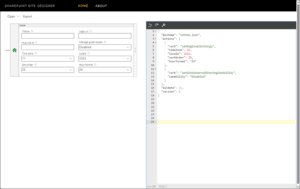
You can use a free online site script generator e.g. SiteDesigner.
It provides a nice GUI and multiple samples which you can modify. On the right-hand side, you get a ready-to-use site script in JSON format.
One issue – I found that the timeZone parameter is implemented in the wrong way (or Microsoft changed it).
The tool generates it as a numeric value (-9 means -9 hours from the GMT zone), but it should be a time zone code. Check the reference page https://learn.microsoft.com/en-us/previous-versions/office/sharepoint-server/ms453853(v=office.15).
Create a SharePoint Online Template
You have the site script, so the next step is to create a site design using PowerShell.
1. Connect to the SharePoint Online
$SPOAdminSite = “https://tenant_name-admin.sharepoint.com”
Connect-SPOService $SPOAdminSite
2. Define a site script variable
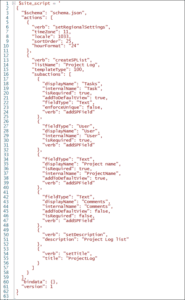
3. Create a site script using PowerShell
Add-SPOSiteScript -Title “Project Log” -Content $site_script -Description “Creates a list for Project changes”
Copy the ID from the output and use it in the next command

4. Create a site design using PowerShell
Add-SPOSiteDesign -Title “Project Log” -WebTemplate “64” -SiteScripts “63e8d4fc-481b-4d67-a6a0-84bdfcb6fb17” -Description “Creates a list for Project changes”
ID – the site script ID from the previous command
WebTemplate – ID of the site template
- 64 – Team site
- 68 – Communication site
- 69 – channel site
Apply a SharePoint Template
Now you can test your new site template.
- Navigate to your test site.
- Open the Site Settings and click Apply a Site template

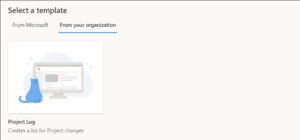
- Select From your organization tab and click on the new site template.In this example, there is a default image, but you can assign a thumbnail image and a details image during the Site design creation process (using the Add-SPOSiteDesign command).
- On the next page, you can check what will be created and applied with this template. Click the Use Template button to start.
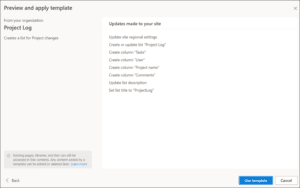
- The process will take some time – it depends on the complexity of the template.You can click View Progress to check what’s going on.

- When it’s finished you can check if everything is in place. In this case, a new list has been created.
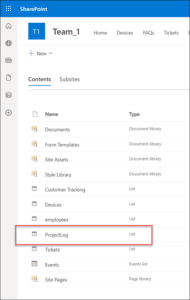
You can apply the same template multiple times on a selected site. If an object specified in the template already exists, it won’t be overwritten or removed.
The template will create or update only things that don’t exist.
By default, custom templates are available for every SharePoint user. You can limit this option using PowerShell.
Grant-SPOSiteDesignRights -Identity c9afda0e-23ab-4e68-be09-02b68dd7ffc7 -Principals (“user@contoso.sharepoint.com”) -Rights View
This command enables the templated with a specific ID for a user or a group specified in the Principals parameter.
Wrapping it Up:
You can use templates to keep your IT guidelines and be sure that all new sites will have implemented standard features or sharing options. Business users get predefined sites tailored to their needs with company branding in place.
Not all SharePoint features are available for templates – there is no webpart management, managed metadata support, or Power apps integration.
Fortunately, you can run a Power Automate Flow directly from a template and fill this gap – you can add advanced automation or create missing features.
You can also automate the entire process and apply the template right after the site is created. To do this you can use Azure Logic Apps with additional Azure components.
Contact us for more information by clicking here: