Dropbox to Microsoft 365 Migration
Move your files, teams, and workflows to Microsoft 365 without losing a beat.
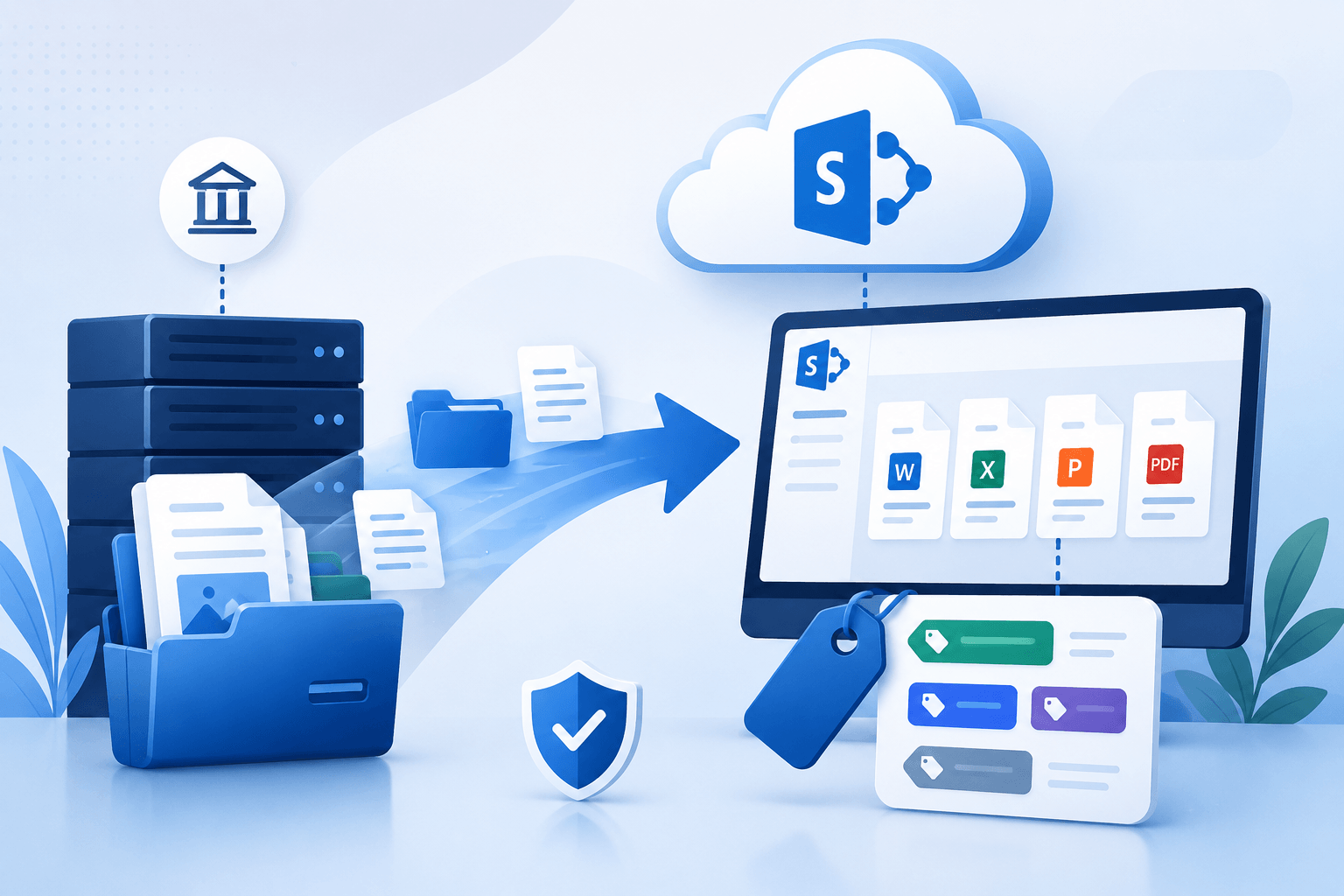
If your organization is planning to migrate Dropbox to OneDrive, now is the time to act. WME helps you move everything, files, folders, permissions, and shared links, into Microsoft 365 while keeping your business running smoothly.
Secure, Structured Dropbox Migration with Minimal Downtime
No broken links. | No lost versions. | No downtime.
With Microsoft 365, your teams gain real-time collaboration, centralized SharePoint Online libraries, and secure OneDrive storage.
Whether it’s your Dropbox account data, Dropbox Paper, or Team folders, we ensure every item lands exactly where it should.
Why does this matter?
Moving to Microsoft 365 unlocks the advantage of the latest features, streamlines governance, and gives your IT team the control it needs, without disrupting users or workflows.
Trusted by 500+ Global Brands and Backed by Industry Leading Tech Partners








Why Forward-Thinking Organizations Move Dropbox to Microsoft 365
One Hub for All Your Files and Teams
When you migrate Dropbox to OneDrive, all your Dropbox account data, Team folders, and Dropbox Paper documents land in one place. SharePoint Online and OneDrive become your central hub, enabling real-time collaboration and version control. Users can access, edit, and co-author files seamlessly across Microsoft Office apps without juggling multiple platforms.
Full Control Over Access and Sharing
With Microsoft 365, IT teams gain robust oversight. SharePoint admin tools, security updates, and permission inheritance ensure sharing permissions stay consistent, even for external collaborators. Mapping Dropbox Users to Office 365 identities keeps your data governance tight while preserving every folder and file structure.
Modern Collaboration Features at Your Fingertips
Moving from Dropbox unravels the advantage of the latest features in Microsoft 365. Co-author documents in real-time, integrate with Teams and cloud services, and leverage Office 365 apps for smoother workflows. Dropbox Paper content and shared links migrate safely, so teams hit the ground running.
Streamlined IT Management Without the Headache
IT no longer needs to juggle multiple Dropbox for Business accounts or worry about delta sync conflicts. Every source folder, file type, and team folder is migrated using best practices, reducing manual work and freeing your team to focus on strategic initiatives.
Where Dropbox Migrations Usually Hit Snags
Mapping Dropbox Users Without Losing Access
When you migrate Dropbox to OneDrive, each user must be mapped correctly to their Office 365 identity. Misaligned accounts can break sharing permissions or leave team folders inaccessible. A dedicated Migration Administrator ensures every Dropbox user lands in the right place, preserving folder structure and access rights.
Preserving File Integrity and Versions
Large Dropbox accounts often contain complex Dropbox content, multiple file types, and delta sync updates. Without careful handling, version history can be lost. Our process captures every file, metadata, and source folder, so your data remains intact and real systems continue to function smoothly.
Maintaining External Collaboration
Organizations rely on shared links and external collaborators. During migration, external sharing can break if not managed properly. We make sure links in Dropbox Paper, Team folders, and Dropbox files continue to work, with all permission inheritance preserved for smooth collaboration.
Handling Special Cases and Exceptions
Dropbox for Business environments often include special characters, unusual folder structures, or files requiring manual attention. By applying best practices and reviewing each migration list, we reduce errors and avoid post-migration support headaches.
Plan the Migration Before You Touch a Single File
Connect to Dropbox the Right Way
Before any data migration begins, securely connect to Dropbox using a verified Dropbox administrator account. This ensures full visibility into all Dropbox data, including Team folders, Dropbox Paper, and shared content.
Map Identities and Access Early
Map identities and user access between Dropbox and Office 365 before execution. This avoids permission gaps and ensures every user lands with the right access from day one.
Review Destination Paths in Advance
Carefully review destination paths across OneDrive and SharePoint Sites so files don’t end up scattered. A structured approach ensures your folder structure remains logical and easy to navigate.
Avoid Manual Workarounds
Manual methods often lead to broken links and missing permissions. Instead, we follow a structured migration project plan backed by automation and validation.
Everything That Moves When You Migrate Dropbox to OneDrive
Metadata, Files, Folders, Land Perfectly
Every document in your Dropbox account, from simple files to nested Team folders, transfers seamlessly. Folder structures and metadata are preserved, so users find everything exactly where they expect it. Dropbox content, like version history and source folder organization, is maintained, ensuring your real systems keep running smoothly.
Dropbox Paper and Collaboration Data
Your Dropbox Paper notes and collaborative documents migrate intact. Shared links, comments, and collaboration history stay live, letting teams continue real-time editing without interruption.
Permissions and Sharing Are Preserved
All sharing permissions, including permission inheritance, move with the files. External sharing setups remain intact, so your collaborators can keep working without broken links or access issues.
Special Content Types and Exceptions
From unique file types to Team folders with special characters, we account for edge cases. Every item is reviewed against your migration list, following best practices to avoid disruptions.
Migrate smarter, collaborate faster, and secure your files, all in one move.
How Your Dropbox Moves to OneDrive, Step by Step
Assessment and Planning
Pre-Migration Testing
Migration Execution
Post-Migration Validation
Build a Governance Framework That Works from Day One
Organize SharePoint Sites and OneDrive for Teams
After you migrate Dropbox to OneDrive, creating a clear structure is key. SharePoint Sites and Team folders are organized for easy access, consistent naming, and proper permissions. This reduces confusion, streamlines collaboration, and keeps Dropbox content under control.
Enforce Security and Compliance Across Office 365
Microsoft 365 gives IT teams tools to enforce security updates, monitor external sharing, and track compliance across all files and Dropbox Users. By setting up SharePoint admin controls and policies, your organization maintains strict governance without slowing users down.
Map Permissions and Access Rules
Every file, folder, and Team folder keeps its original sharing permissions and permission inheritance. Mapping Dropbox Users and groups ensures external sharing rules and internal access levels are accurate from the start.
Enable Real-Time Collaboration Safely
With the structure in place, users can edit files, co-author documents, and collaborate across cloud services in real-time, without worrying about broken links or mismanaged permissions. Your IT team can confidently monitor activity while users work smoothly.
Get More from Your Migration. Benefits That Matter
Work Smarter Across Teams and Tools
Once you migrate Dropbox to OneDrive, your files, Team folders, and Dropbox content connect seamlessly with Microsoft Products, Dynamics 365, and Business Central. Collaboration happens in real-time, and your teams actually enjoy using their tools instead of fighting them.
Make Every Feature Work for You
Microsoft 365 gives your organization the advantage of the latest features, AI-assisted workflows, automatic versioning, and smarter cloud services integration. Dropbox Paper and shared links move intact, so nobody loses work or momentum.
Take IT Off the Hook
Forget juggling multiple Dropbox for Business accounts or worrying about delta sync conflicts. A dedicated Migration Administrator handles the heavy lifting, letting your IT team focus on strategy instead of troubleshooting.
Support That Keeps You Confident
You’re never left guessing. From technical support to trusted Microsoft documentation, plus best practices and Ask Learn guidance, your team can migrate, verify, and start collaborating with confidence.
Centralized access with OneDrive and SharePoint Online
Preserved Dropbox data, Team folders, and Dropbox Paper
Real-time collaboration across Office 365
Secure sharing with full control and governance
Simplified IT management and reduced operational friction