Windows Autopilot is designed to automate device provisioning and deliver a seamless out-of-box experience for end users. But when the Intune Autopilot error 80180014 appears, the entire deployment process stops, leaving Windows devices stuck on the Enrollment Status Page (ESP) and preventing the device from joining Microsoft Entra ID.
This error is one of the most common issues seen in enterprise environments using Microsoft Intune or during larger endpoint management services, especially where strict enrollment restrictions, BYOD policies, or device preparation controls are applied.
In this guide, you’ll get a complete root-cause explanation, screenshots, diagnostic paths, registry insights, and a step-by-step process to fix Autopilot device enrollment failures, including:
Azure AD Join failures
Autopilot device ownership issues
Device enrollment restriction conflicts
TPM attestation checks
Profile settings and device profile assignments
ModernDeployment-Diagnostics-Provider logs
This tutorial is based on real Windows Management Experts troubleshooting work and is fully aligned with Autopilot and Intune best practices.
In most cases, this error means your device isn’t marked as Corporate-owned yet.
Autopilot devices are treated as personal during initial join. If your tenant blocks personal Windows devices, enrollment fails with 80180014. Fix path:
If that’s already set, the full guide below covers Steps 2–4 and the deeper checks.
What Is Intune Autopilot Error 80180014?
Error 80180014 occurs when a Windows Autopilot device attempts to join Microsoft Entra ID (Azure AD) but the tenant’s current enrollment restrictions, device type restrictions, or MDM enrollment settings block the device.
Autopilot devices begin the onboarding process as if they were personal devices, not corporate.
If your tenant blocks personal Windows devices, Autopilot fails.
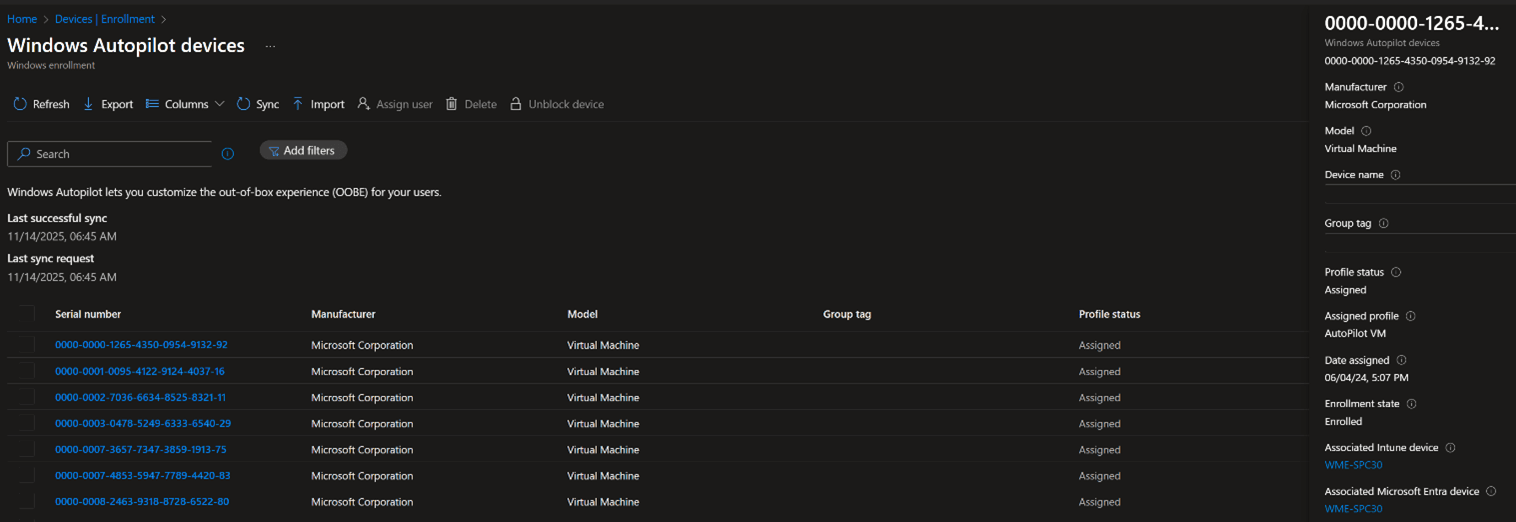
Why This Autopilot Error Happens
During Autopilot process initialization:
Device imports the hardware hash
Device receives Autopilot deployment profile
Device attempts Microsoft Entra ID Join
Device tries automatic MDM enrollment through Intune
Enrollment Status Page loads required apps and configurations
If the device is not marked as corporate-owned, or if Intune’s enrollment restrictions block personal devices, the system generates the following error:
This means:
Azure AD join attempt was rejected
Device object or device record was not accepted
User authentication was blocked
Device platform restrictions denied enrollment
A constraint violation occurred during device object creation
Root Cause Summary
Autopilot devices are treated as personal devices during initial join
Enrollment restrictions block personal Windows devices
Device ownership is not yet marked as Corporate
Intune cannot complete Intune Enrollment or MDM registration
ESP gets stuck configuring required apps, device profiles, or device configurations
This aligns with Microsoft’s behavior:
Autopilot devices only become corporate after successful join, not before.
How to Fix Intune Autopilot Error 80180014
Below is the optimized, field-tested troubleshooting process we use at WME
Verify Autopilot Device Ownership
Ensure the device is flagged as Corporate-owned before enrollment.
Path in Microsoft Intune admin center:
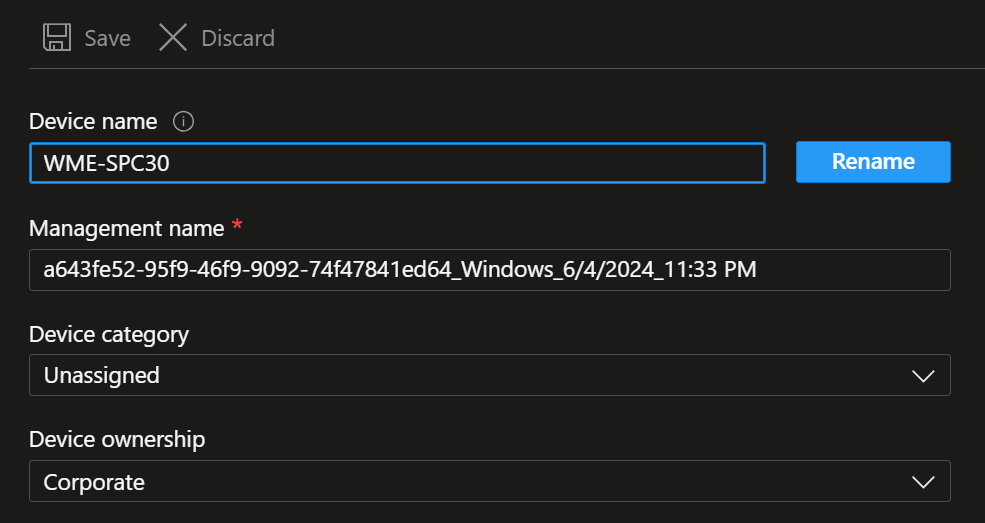
If the device already has a device object in Intune:
Open the device record
Set Device Ownership = Corporate
Save and retry Autopilot enrollment
Check Enrollment Restrictions
Navigate to:
Make sure:
Personal Windows devices are allowed
—or—
Autopilot user groups are excluded from blocking policies
Autopilot user-driven mode requires user permissions to join the device.
Self-deploying mode requires device-based policies to be open enough to allow join.
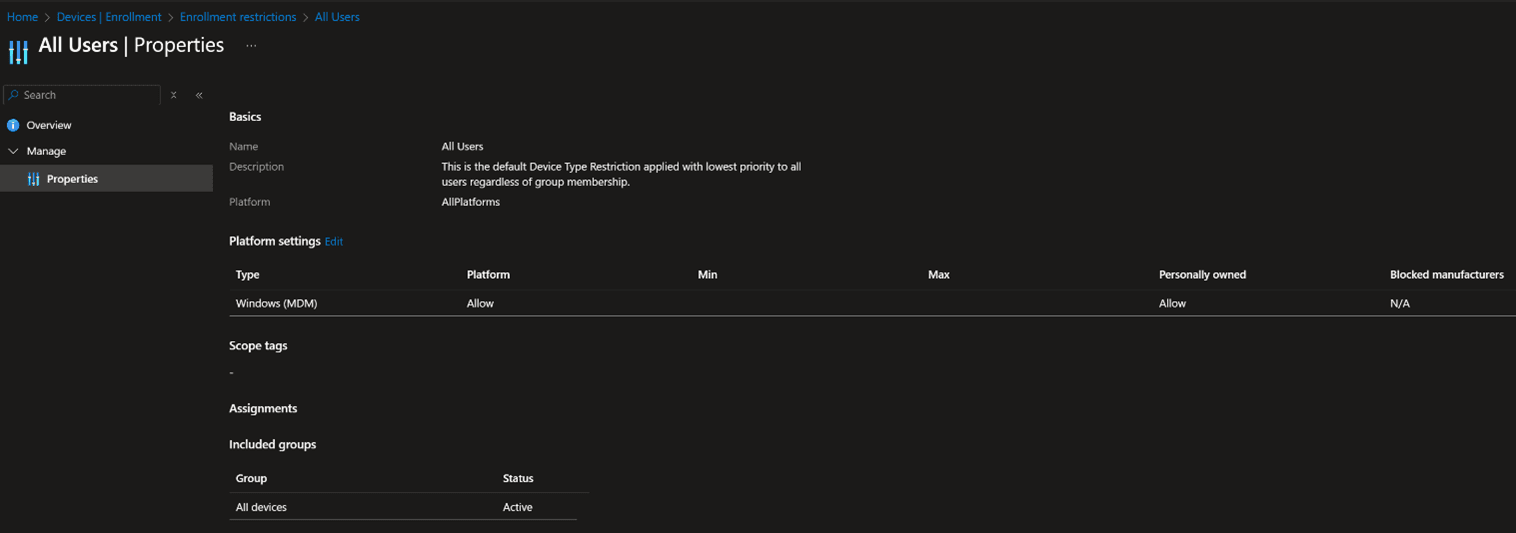
Blocking personal devices too early breaks Autopilot even when the device is preregistered.
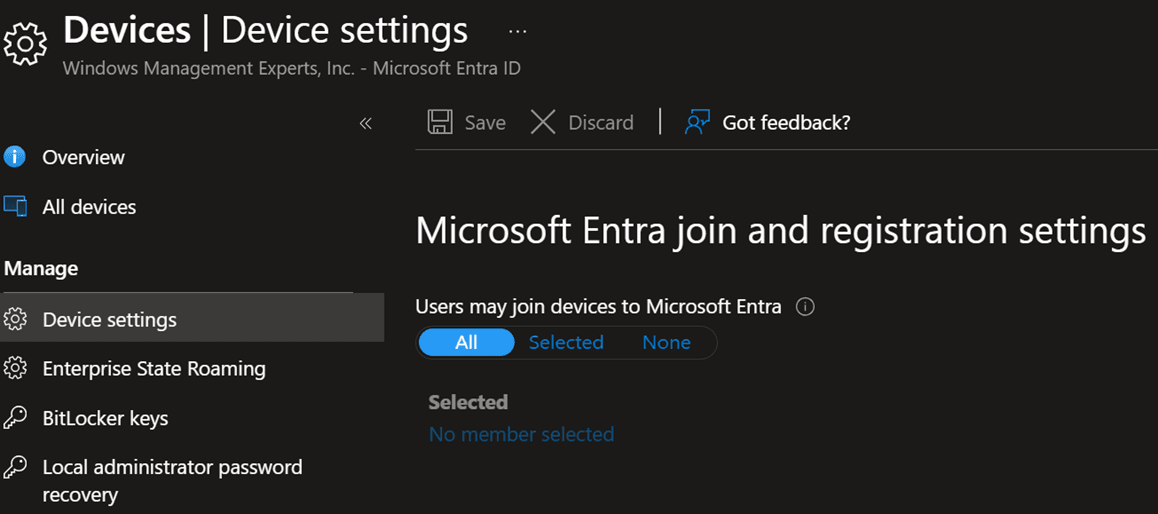
Validate Microsoft Entra ID Join Settings
Open:
Ensure:
Users may join devices to Azure AD = Enabled
User is part of correct device groups
Domain controller or AD Connect hybrid join policies are not overriding settings
Hybrid domain join environments often cause this issue if the device attempts Hybrid Join while Autopilot expects Cloud Join.
Confirm Automatic MDM Enrollment Configuration
Go to:
Ensure:
MDM user scope = All or correct users
WIP scope = None
Automatic MDM enrollment is on
No conflicting device enrollment restriction
Improper MDM scope stops Windows from completing Intune Management registration.
If Steps 1–4 resolved it, you’re done. If not, the Additional Troubleshooting Steps below cover Event Viewer logs, registry keys, hardware hash validation, and network requirements — the deeper checks we run when the first four steps don’t fully clear it. Or reach out directly using the link below.
Talk to Our Intune Experts →Additional Troubleshooting Steps
These steps help when the ESP hangs, profile settings fail, or the deployment process stops.
Check Event Viewer Logs
Navigate to:
Look for:
Check Registry Entries
Common keys to verify:
HKLM\SOFTWARE\Microsoft\Windows\Autopilot
These indicate:
Deployment profile assigned
Profile configuration progress
Pre-provisioning mode state
Device ESP behavior
Verify Device Import (Hardware Hash)
Ensure the Serial Number, hardware hash, and device import are correct:
Missing or invalid hashes break pre-provisioning and cause 80180014.
Check Network Requirements
Autopilot requires:
HTTPS access to Microsoft endpoints
No SSL inspection
Working Windows Updates
Proper DNS resolution
No firewalls blocking:
Autopilot deployment service
Intune MDM enrollment URI
Company Portal installation
Poor network = Autopilot failure.
Troubleshooting Checklist
Device marked as Corporate
Enrollment restrictions configured
Azure AD join permissions
MDM scope correct
Deployment profile assigned
Required apps install successfully
TPM attestation validated
Hardware hash correct
Network connectivity stable
No Conditional Access blocks
No conflicting device profiles
ESP allowed to install required apps
Final Thoughts
Intune Autopilot error 80180014 happens because Autopilot devices are not recognized as corporate-owned during the initial join.
If your tenant blocks personal devices — even unintentionally — Autopilot enrollment fails.
Fixing this requires proper ownership, correct enrollment settings, and an accurate Autopilot configuration path.
Fix Device Enrollment Issues Fast With Expert Intune Support
Resolve Autopilot errors, optimize device onboarding, and stabilize your Windows deployment pipeline with proven Endpoint Management strategies from WME.
TALK TO OUR EXPERTS