Enforcing Zero-Trust Approach means verifying all endpoints and this contains not only partners, contractors, or guest devices, but also includes apps used by employees to access work data. Nowadays, as employees like to bring their own devices and work remotely, data is being accessed from outside the corporate network. Corporate applications are moving from on-premises to hybrid and cloud environments. So, organizations need a security model that protects devices, applications, and data wherever they are located. This is the principle of Zero-trust.
Building Zero-trust into your organization
- Register endpoints with cloud identity providers:
You would need to register corporate or personal devices with Azure Active Directory and ensure policies are applied and malware has been measured and remediated. Once the devices are registered with the Azure Active Directory, users can access the organization resources using a username and password or Windows Hell for business.
To register new Windows 10 devices, start your new device and begin with the OOBE process and type your work or school account with a password in the sign-in with Microsoft screen. Complete the OOBE process and the device is now joined to Azure active directory.
For existing Windows 10 devices, open settings and select access Work or School -> connect. On the setup work or school account screen, click Join this device to Azure Active Directory. Enter your email address and password to sign in to complete the domain join process.
- Configure Windows Hello for Business:
Zero-trust architecture has a lot to do with permissions and access, etc. Users can use alternative sign-in methods like PIN, biometric authentication, or fingerprint reader and you need to configure windows hello for business enrollment policy in Microsoft Intune.
Go to Devices -> Enrollment -> Enroll Devices -> Windows Enrollment -> Windows Hello for Business and select the following options (Disabled, Enabled, Not configured). Choose Enable option to configure Windows Hello for business settings.
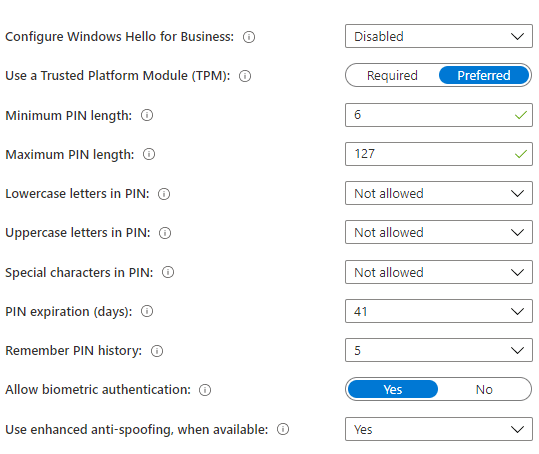
- Use a Trusted Platform Module (TPM): TPM provides additional security to data. If you choose “Required” option, only devices with TPM, can use the Windows hello for business. “Preferred” option the device will try to use TPM first, its not available, it will use software encryption.
- Minimum & Maximum PIN length: You can choose minimum & maximum PIN length to specify secure sign in. The default PIN length is 6 characters but you can choose 4 characters and maximum 127 characters.
- PIN expiration (days): Specify expire period for PIN. Once the period is over, you would need to change new PIN and the default period is 41 days.
- Remember PIN history: This option is to restrict the previous used PINs. By default, you can not use last 5 PINs. After configure the settings, apply to enrolled windows 10/11 devices.
- Access only to compliant endpoints and apps:
Configure compliance policies in Microsoft Intune and deploy to all endpoints accessing corporate resources. Once compliance policies are applied, endpoints gain trust to access corporate resources and the users can access organization data and applications. For non-compliant devices, set remediation rules to block the devices and a grace period to become compliant.
You can automate email notifications and remediation actions for non-compliant devices and guide users for self-remediations. Alerts will be automatically generated with alarms to perform remediation actions.
- Data loss prevention policies for endpoints:
After devices can access corporate data, you want to control data and the users should not save the data to unprotected storage locations. You can apply application protection policies to corporate data. Please follow the following steps to configure it. First, apply security settings and updates are automatically deployed to devices, devices are encrypted and then create application protection policies to protect application data at the application level.
- Apply recommended security settings -> Intunesecurity baselines will help you protect users and devices and the security baselines are preconfigured groups of Windows settings. In Microsoft Intune, select endpoint security and verified the list of available baselines. Select baseline and then create profile and select the settings available in the configuration settings as per business requirements and assign to users or devices group.
- Deploy updates automatically to devices -> Deploy the monthly updates automatically to devices using windows updates for business and configure the settings in windows update rings and assign to users or devices groups. Using Windows 10 Feature update settings in Microsoft Intune, you can deploy windows version update (i.e., 1809 or 1909) to upgrade the devices into latest windows version.
- Device encryption -> Configure BitLocker settings as per your requirements and assign to devices.In Microsoft Intune, go to Devices -> Configuration Profiles, Choose Platform and profile type and windows encryption settings and assign to devices.
- Configure Application protection policies to protect data at application level -> Configure application protection policies to monitor and perform actions for the users while accessing the applications. There are three levels to protect the application data. 1. Enterprise basic data protection – the application is protected with PIN, Password and Wipe operations. 2. Enterprise enhanced data protection – The application data leakage prevention and minimum OS requirements. 3. Enterprise high data protection – Advanced data protection mechanisms to enhance PIN configurations and the application threat defense. You can create application protection policies in Microsoft Intune by choosing the application -> Application protection policies.
- Endpoint threat detection:
Configure endpoint security in Microsoft Intune to monitor and manage all endpoints.
The below figure represents the high-level view of Zero-trust, Microsoft will be evaluating and implementing in next two to three years.
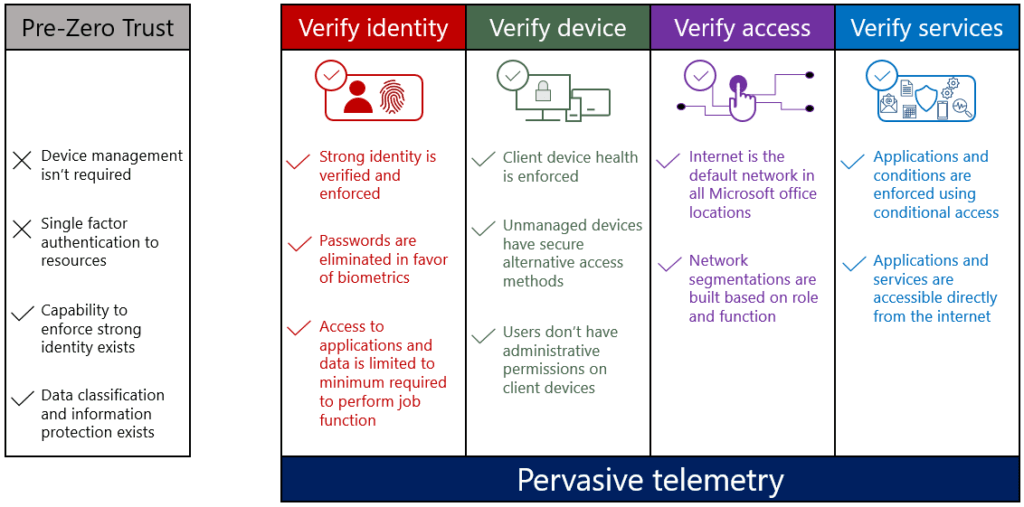
Each organization needs to evaluate and determine the approach that suits their environment and define the scope and verifications they require for users to access their company resources. Zero-trust will strengthen the security of corporate data and devices.
FAQs related to Zero-Trust End-Point Security
What is Azure Active Directory?
Azure Active Directory is a cloud-based identity and access management service provided by Microsoft. It allows organizations to manage user identities, control access to resources, and enforce security policies across various applications and services.
What is Windows Hello for Business?
Windows Hello for Business is a feature in Windows 10/11 that enables users to sign in to their devices using alternative methods such as a PIN, biometric authentication (e.g., fingerprint or facial recognition), or smart cards. It enhances security by replacing traditional passwords with more secure and convenient sign-in options.
What is a Trusted Platform Module (TPM)?
A Trusted Platform Module (TPM) is a hardware component that provides additional security features and cryptographic capabilities to protect sensitive data on a device. It is used for tasks such as securely storing encryption keys and verifying the integrity of the system.
What are compliance policies in Microsoft Intune?
Compliance policies in Microsoft Intune allow organizations to enforce security and compliance requirements on devices accessing corporate resources. These policies can include settings like device encryption, password complexity, and software update requirements. Non-compliant devices may be restricted from accessing corporate resources until they meet the defined compliance standards.
How can I protect application data at the application level?
To protect application data at the application level, you can configure application protection policies in Microsoft Intune. These policies allow you to define security measures such as requiring PIN or password authentication, preventing data leakage, and setting minimum operating system requirements. Application protection policies help safeguard corporate data when accessed through specific applications.
What is BitLocker and how can it be configured?
BitLocker is a disk encryption feature provided by Microsoft Windows. It encrypts the data on a device’s hard drive, protecting it from unauthorized access. To configure BitLocker settings, you can use Microsoft Intune’s device configuration profiles. By specifying the desired encryption settings and assigning the profiles to devices, you can ensure that data on those devices remains encrypted.
How can I monitor and manage endpoint security?
Microsoft Intune provides endpoint security capabilities to monitor and manage devices accessing corporate resources. By configuring endpoint security policies in Intune, organizations can track device health, detect potential threats, and take remediation actions when necessary. Endpoint security helps ensure the ongoing protection of devices and the security of corporate data.